
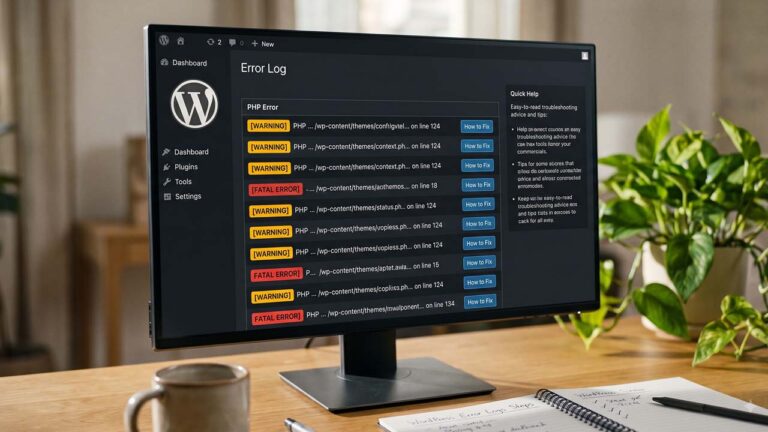
The site shows “There has been a critical error on this website” and nothing else. The admin email has a recovery link, the host status page is green, and the last plugin update was three days ago. Somewhere on the server there is a text file with the actual error in it, and almost nobody opens it.
That file is not cryptic. A PHP error line has a fixed shape: a timestamp, a severity, a message, a file path, and a line number. Once you can read that shape, most WordPress failures stop being mysterious and become a decision about one plugin, one theme, or one PHP version.
The File Nobody Opens
WordPress ships with a debug mode that writes PHP errors to wp-content/debug.log. It is off by default, it is not in the admin menu, and it is not mentioned in most hosting dashboards. That combination is why the first response to a fatal error is usually a support ticket rather than a look at the log.
The log is also the only place where some errors appear. A warning that fires on every page load, a deprecated function called by an old theme, a fatal in a plugin that only happens for logged-out visitors — none of those necessarily show up in the browser, and none of them are recorded by an activity log plugin. An activity log answers “who changed what”. debug.log answers “what broke, where, and when”.
What WordPress Logs, and What It Doesn’t
With WP_DEBUG on, WordPress sets PHP’s error_reporting to E_ALL, which means notices, warnings, deprecations, and fatal errors all become candidates for the log. That is deliberate: the notices you never see in production are often the early warning for a PHP version upgrade.
It does not log everything. Three gaps are worth knowing before you conclude the file is useless:
- Server-level failures. A 500 caused by
.htaccess, a missing PHP module, or a crashed PHP-FPM pool can happen before WordPress loads. Nothing reachesdebug.log. The 500 error guide covers that path. - JavaScript errors. A broken script, a blocked reCAPTCHA, a console error from a page builder — those live in the browser console, not in PHP’s log. The reCAPTCHA reference error is a worked example of the difference.
- Errors that kill PHP before logging is configured. A syntax error in
wp-config.phpmeans WordPress never runs, so the constants that enable logging are never read. That case needs the host’s error log orphp -l.
Turn It On Without Showing Errors to Visitors
The configuration is three constants in wp-config.php, before the line that says “That’s all, stop editing”:
define( 'WP_DEBUG', true );
define( 'WP_DEBUG_LOG', true );
define( 'WP_DEBUG_DISPLAY', false );
The third line is the one people skip. WP_DEBUG_DISPLAY controls whether errors are printed into the page. Setting it to false sends them to the log and keeps the front end clean, which matters on a live site: a warning printed above the header can break layout, leak a full server path, and hand a visitor information about your file system.
There is a detail in core worth knowing, because it explains a behaviour that looks inconsistent. In wp_debug_mode(), WordPress reads WP_DEBUG_DISPLAY; if it is false, it sets display_errors to 0. Separately, for REST requests, AJAX, XML-RPC, and JSON requests, core forces display_errors off regardless, so an error in an API call does not corrupt the response with HTML. The log still gets the entry.
If you prefer the command line, WP-CLI can write the constants without opening the file:
wp config set WP_DEBUG true --raw
wp config set WP_DEBUG_LOG true --raw
wp config set WP_DEBUG_DISPLAY false --raw
wp config set edits wp-config.php in place and refuses to run if the file is not writable, which is a useful guard against half-applied changes.
Where the File Lives and Why That Matters
By default the log is wp-content/debug.log. That path is inside the web root, which means a browser can request it unless the server blocks the file. PHP’s error_log directive decides where errors go when WordPress does not override it, and WP_DEBUG_LOG is the override. Test the URL:
curl -sI https://yourdomain.com/wp-content/debug.log | head -n 1
A 403 or 404 is the outcome you want. A 200 means anyone can read your errors, including full file paths, plugin versions, and sometimes database details in a connection error. Fix that before you enable logging for more than a few minutes: deny the file in the server config, or point WP_DEBUG_LOG at a path outside the web root.
WP_DEBUG_LOG accepts a path as well as true. That is the cleaner production option:
define( 'WP_DEBUG_LOG', '/var/log/wordpress/debug.log' );
Core checks the value: true or 1 selects wp-content/debug.log, a string is used as the path, and anything else disables file logging. The directory has to exist and be writable by the PHP user, or the log silently stays empty. The Debugging in WordPress handbook documents the same constants and the same warning about placing them before the “stop editing” line.
A Log Line Has a Grammar
A typical entry looks like this:
[16-Nov-2026 09:14:22 UTC] PHP Warning: Undefined array key "price" in /var/www/site/wp-content/plugins/store-locator/includes/render.php on line 84
PHP writes that line through error_log(), and the function is also what your own code can call when you need a value recorded without printing it into the page. Read the entry in five parts:
| Part | What it tells you |
|---|---|
[16-Nov-2026 09:14:22 UTC] | When it happened, in the server’s timezone |
PHP Warning | Severity, and therefore how much it matters |
Undefined array key "price" | The actual message, usually the most searchable part |
/wp-content/plugins/store-locator/... | The component that owns the code |
on line 84 | The exact line, if you need to open the file |
The severities you will see most often:
- Fatal error — the request stopped. This is the one that produces the critical error screen.
- Parse error — PHP could not read the file at all. Usually after an edit, and usually a missing semicolon or brace.
- Warning — something went wrong but execution continued. Undefined variables, failed includes, wrong argument types.
- Notice — a smaller warning, often an undefined index or a string offset.
- Deprecated — a function or argument that still works but is scheduled for removal. This is the one to act on before a PHP upgrade.
The path is the most useful part for triage, and it is the part most people skip when they paste an error into a search engine.
Read Fatals First, Then Deprecations, Then Warnings
A log with four hundred lines is not four hundred problems. It is usually one problem that fired on every request. Triage by severity, not by position in the file.
1. Fatals. Find the newest PHP Fatal error, take the path, and decide which bucket it falls into:
| Path contains | Likely owner | First move |
|---|---|---|
/wp-content/plugins/ | A plugin | Deactivate that plugin, retest |
/wp-content/themes/ | The active or parent theme | Switch to a default theme, retest |
/wp-content/mu-plugins/ | Custom or host-added code | Rename the file, retest |
/wp-includes/ or /wp-admin/ | WordPress core | Reinstall core files, check for a partial update |
| No path, or “Allowed memory size” | PHP or the host | Raise the memory limit, then find the consumer |
“Allowed memory size exhausted” deserves its own note: the fatal names a file, but the file is often just where the limit was reached, not the code that consumed the memory. The memory exhausted guide covers the limit itself; the log tells you which request was running when it hit.
2. Deprecations. A line like Function create_function() is deprecated is not breaking anything today. It is a date stamp. If the path belongs to a plugin that has not been updated in years, that plugin is the thing to replace before the host moves to the next PHP version.
3. Warnings and notices. These are the long tail. One undefined array key in a widget is cosmetic. Five hundred of them on every page load is a performance and stability signal, and the count is more informative than any single line.
A parse error is a special case. It means the file cannot be loaded, so the site may be down completely, and the fix is almost always the last edit. If it happened in wp-config.php, WordPress cannot start, and the recovery link will not help; restore the file from a backup or fix the syntax over SFTP. The backup guide exists for exactly this moment, which is why the constants below belong in a change log as well as a config file.
Group the Noise Before You Fix Anything
Reading the last fifty lines tells you what is happening now. Counting by component tells you what to fix first:
cd /path/to/wordpress

# The 50 most recent entries
tail -n 50 wp-content/debug.log

# Which plugin or theme owns the most lines
grep -oE 'wp-content/(plugins|themes|mu-plugins)/[^/]+' wp-content/debug.log \
  | sort | uniq -c | sort -rn | head -n 10

# How many fatals are in the file
grep -c 'PHP Fatal error' wp-content/debug.log
The middle command is the one that changes decisions. If 80 percent of the lines point at one plugin directory, the site does not have eighty problems; it has one plugin with a logging habit. Deactivate it on staging, load the pages that were failing, and see whether the fatals stop.
Two caveats on the counts. The log has no size limit by default, so a site left in debug mode for a month can produce a file measured in gigabytes, and grep over it is slow. Rotate or truncate it first. And the same error on every request inflates the count without adding information; the timestamp column is what tells you whether a line is new or a repeat.
When the Log Is Empty and the Site Is Down
An empty debug.log after a fatal does not mean there was no error. It means the error did not reach the logger.
Check these in order:
- Is the file there at all?
ls -l wp-content/debug.logon the server, or the file manager in the host panel. If it does not exist, the constants are not active or the directory is not writable. - Did the constants land in the file WordPress actually loads? That is normally
wp-config.phpin the site root, and it can be one level above it on some hosts. A copy in a different directory changes nothing. - Is there a syntax error in
wp-config.php? Runphp -l wp-config.php. If it fails, WordPress never boots and nothing is logged. - Is the host capturing PHP errors somewhere else? Managed hosts often route them to a panel log or to PHP-FPM’s own file.
phpinfo()shows the effectiveerror_logpath; the host’s documentation shows where that maps on their filesystem. - Did the fatal happen before WordPress? A missing PHP extension or a bad
.htaccessrule produces a 500 with nothing in the WordPress log.
The server log is the fallback, not a lesser option. On a typical Linux host it is /var/log/apache2/error.log, /var/log/nginx/error.log, or a PHP-FPM log under /var/log/. On managed hosting it is usually a “PHP errors” or “Access logs” view in the panel. The functionality and speed checklist covers the wider set of checks worth running when a site misbehaves but the cause is not obvious.
Recovery Mode Is the Safety Net
Since WordPress 5.2, a fatal error during a normal page load does not always leave you locked out. WordPress sends the administrator an email with a link that opens the site in Recovery Mode, where you can log in and deactivate the plugin or theme that caused the fatal. Visitors see a technical difficulties message in the meantime.
The Recovery Mode documentation lists the limits, and two matter here:
- It activates on regular page loads, not cron or background tasks. A fatal in a scheduled job will not produce the email or the recovery link.
- The email is sent before most plugins load. If your site uses an SMTP plugin, that plugin has not run yet, so the message goes out through the server’s mail path. If server mail is unreliable, the recovery email may never arrive even though Recovery Mode was triggered.
Recovery Mode is a way back in. It is not a diagnosis. The log entry is still the thing that tells you which file caused the fatal, and without it you are deactivating plugins one at a time.
Turn It Off, Then Verify
Debug mode is a temporary instrument, not a setting. Leaving it on has three costs: the log grows without limit, deprecation notices accumulate, and a misconfigured server can end up serving the file.
The sequence that closes the loop:
- Fix or deactivate the component named in the newest fatal.
- Load the page that failed, logged out, in a private window.
- Check the last ten lines of the log. A new fatal means the fix did not hold.
- Set
WP_DEBUGback tofalse, or remove the three constants. - Truncate or delete
debug.log, and confirm the URL returns 403 or 404. - If the problem was a fatal, keep the log entry in the ticket. It is the only record of what happened before the fix.
A note on step 4: WP_DEBUG_DISPLAY false means visitors never saw the errors, so turning debug off is not what protects them. Turning it off protects the server from a growing file and protects you from forgetting that a verbose logger is running.
A Short Checklist
- [ ] The three constants are in
wp-config.php, before “stop editing”. - [ ]
WP_DEBUG_DISPLAYisfalse, so visitors see no errors. - [ ]
debug.logreturns 403 or 404 over HTTP, or lives outside the web root. - [ ] The newest fatal has been mapped to a plugin, theme, mu-plugin, or core.
- [ ] Repeated lines have been counted by component, not read one by one.
- [ ]
wp-config.phppassesphp -lwhen the log is empty and the site is down. - [ ] Debug mode is off again, and the log has been truncated or rotated.
FAQ
Where is the WordPress error log?
By default it is wp-content/debug.log, and it only exists after WP_DEBUG and WP_DEBUG_LOG are enabled. If WP_DEBUG_LOG is set to a path, the file is wherever that path points.
Why is my debug.log empty?
Either the constants are not active, the directory is not writable, or the error happened before WordPress loaded. A syntax error in wp-config.php is the common case: WordPress never starts, so it never opens the log.
Is it safe to enable WP_DEBUG on a live site?
Yes, if WP_DEBUG_DISPLAY is false and the log file is not publicly readable. Debug mode itself does not change what visitors see when display is off. Leaving it on indefinitely is the part to avoid.
What is the difference between a warning and a fatal error?
A warning lets the request continue; a fatal stops it. The critical error screen is usually a fatal, and the file path in that line is the first thing to look at.
Can I read the log without SSH?
Yes. Use the file manager in your hosting panel, or download the file over SFTP. If the log is outside the web root, the panel’s file browser is usually the simplest route. Do not make the file web-accessible just to read it.
What does “Allowed memory size exhausted” mean?
PHP hit the memory limit defined by WP_MEMORY_LIMIT or the host. The file named in the error is where the limit was reached, not necessarily the code that used the memory. Raise the limit carefully, then find the request that consumes it.
How do I stop debug.log from growing forever?
Rotate it with the server’s log rotation, or truncate it after you have read it. Leaving WP_DEBUG on permanently is the underlying cause; turning it off when the investigation ends is the real fix.
Does the error log show JavaScript errors?
No. It records PHP errors from WordPress, plugins, and themes. JavaScript errors appear in the browser console, and server-level failures may only appear in the host’s Apache, Nginx, or PHP-FPM log.
