

Largest Contentful Paint (LCP) means the time it takes for the biggest thing in the visible part of your page to finish rendering. On most pages, that’s an image near the top of the screen. Google calls an LCP of 2.5 seconds or less good. Anything over 4 seconds is poor. When your LCP is slow, the usual advice goes straight to the image. Compress it, convert it, make it smaller.
Chrome’s own field data says that’s rarely where your time goes. The median site with poor LCP waits almost four times longer to start downloading its LCP image than it spends actually downloading it.
So where does the time go? LCP splits into four parts, and each mistake we tested landed mainly in one of them. Our test was one WordPress-style page in ten versions, with all four parts measured every time. Here’s what moved, and what didn’t.
What Is Largest Contentful Paint?
Among the Core Web Vitals, LCP is the one that measures loading. The other two are Interaction to Next Paint and Cumulative Layout Shift. We cover all three in Performance: WordPress Hitting 90+ Core Web Vitals.
Google’s definition is precise. LCP is the render time of the largest image, text block or video in the viewport, counted from the moment your visitor starts loading the page. The full definition and element list is on web.dev.
Only some elements can be your LCP element:
<img>elements, including the first frame of an animated GIF<image>elements inside an SVG<video>elements, using the poster image or the first frame- Any element with a background image set through CSS
url() - Block-level elements that contain text, like headings and paragraphs
The winner can change while your page loads. The browser might paint and report your headline first, then report the hero image once it’s done.
It stops reporting new candidates as soon as your visitor taps, scrolls or presses a key.
Images that haven’t finished loading don’t count yet, and neither does text that’s still waiting for your web font.
Here are Google’s thresholds:
- Good: 2.5 seconds or less
- Needs improvement: between 2.5 and 4 seconds
- Poor: more than 4 seconds
They apply at the 75th percentile of page loads, with mobile and desktop measured separately.
In other words, three visits out of four have to hit the target, not just the ones on your fast laptop.
The Four Parts of LCP
Every LCP time splits into four parts. There’s no gap and no overlap, so they always add up to the full number. The four subparts are defined in Google’s own LCP optimisation guide.
Think of your hero image. The HTML arrives, the browser finds the image, downloads it and paints it. Each step is one part:
- Time to First Byte (TTFB). From the start of the navigation until the first byte of your HTML arrives.
- Resource load delay. From that first byte until the browser starts downloading your LCP image.
- Resource load duration. How long the image itself takes to download.
- Element render delay. From the moment the image arrives until it’s actually on screen.
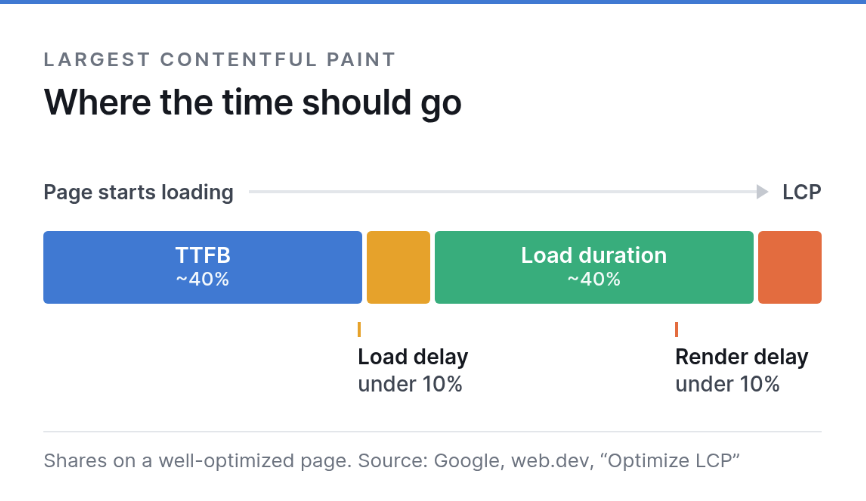
If your LCP element is text in a system font, there’s nothing to download. Both loading parts are zero.
Two of the four parts are called delays, and Google’s advice is to push both as close to zero as you can.
On a well-optimized page, roughly 40% of LCP goes to TTFB and another 40% to the download. Each delay stays under 10%.
Treat those as proportions, not millisecond targets. They show you which part is out of line.
Render delay is where scripts in your page’s head do their damage.
A script without async or defer holds up rendering until it downloads and runs.
That goes for every tag you add, analytics included, so it’s worth checking how a tag loads before it goes live.
That’s the thinking behind lightweight web analytics. A tracker that weighs about 2 KB and loads with defer stays out of the way of your first paint. (Paid product from the team behind this site.)
Where Slow Sites Actually Lose Time
In a 2024 analysis on web.dev, Google looked at these four parts in real Chrome visits, on pages where the LCP element was an image.
The analysis took each site’s 75th percentile for every part, then the median across sites, grouped by LCP rating.
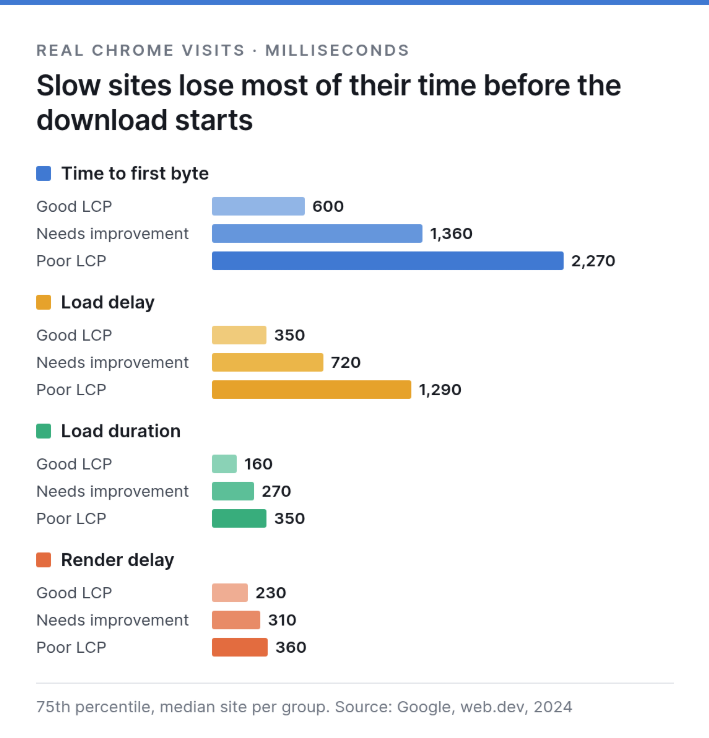
The download was the shortest part in every group, and that’s probably true for your site too.
Most sites with poor LCP spend less than 10% of their LCP time downloading the image.
The big numbers sit elsewhere (source: common misconceptions about optimising LCP):
- The median poor-LCP site waits 2,270 ms for the first byte, which on its own nearly rules out a good score
- Then it waits another 1,290 ms before the image request even starts
- That second wait alone eats more than half of the 2.5-second budget
So compress your images, by all means. Just don’t expect compression to rescue a page that loses seconds before the download begins.
How to Find Your LCP Element
You can’t fix LCP until you know which element it is. Here are three ways to identify the LCP element, from quickest to most detailed.
In Chrome DevTools
- Open DevTools and switch to the Performance panel
- Load your page. The live metrics screen shows your LCP and the element behind it
- Hover over the element, and it lights up on the page
- Record a trace and open the Insights tab in the sidebar to see LCP broken into parts
In Lighthouse or PageSpeed Insights
- Open Lighthouse in DevTools, or paste your URL into PageSpeed Insights
- Pick Mobile and run the test
- Scroll to Insights and open LCP breakdown
You’ll see your LCP element and the time spent in each part. If you want a consistent 90+ in PageSpeed itself, our walkthrough on getting a Google PageSpeed score of 90+ for WordPress covers the wider tuning pass.
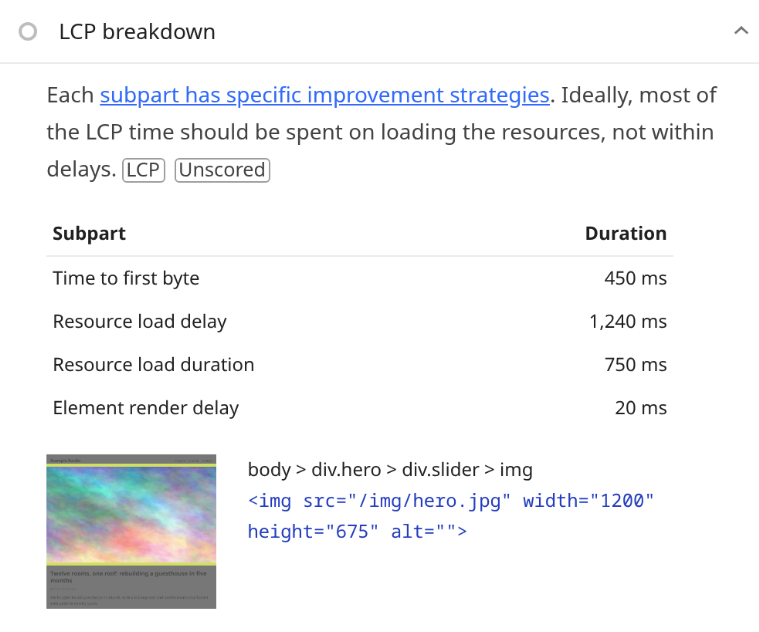
That’s our test page with the hero added by a slider script. Look at resource load delay: 1,240 ms, longer than the download itself.
If you remember the old Largest Contentful Paint element diagnostic, Lighthouse 13 replaced it with the LCP breakdown insight in October 2025.
With One Line of JavaScript
Paste this into your console once the page has loaded. The last entry it logs is your LCP element.
new PerformanceObserver(l => l.getEntries().forEach(e => console.log(e.startTime, e.element))).observe({type: 'largest-contentful-paint', buffered: true})
Check mobile and desktop separately. The largest element depends on the viewport, so your phone can report a different one.
In Search Console
Lab tools test a single load on a single device. Core Web Vitals measure real-world experience, and you can see yours in the Core Web Vitals report in Search Console.
Use the report to find which of your pages are slow, then the lab tools to find out why.
One Page, Ten Versions: What We Measured
To see which mistake lands in which part, we built a test page that looks like an ordinary WordPress post:
- A header, a 1200×675 hero image of 92 KB, a headline and six paragraphs
- Block, theme and two plugin stylesheets, all render-blocking
- Two jQuery-sized scripts in the head, loaded without
defer - A deferred script bundle and a small deferred tag
- Three more images further down, lazy-loaded
Apart from the images, it sends about 123 KB of compressed HTML, CSS and JavaScript.
We put it behind a simulated mobile connection:
- 150 ms round trips, and two of them to open each new connection
- 1.6 Mbps of bandwidth, shared by every download
- A processor slowed down four times
The round trip, bandwidth and processor numbers are the base of Lighthouse’s mobile test.
Then we changed one thing at a time. We ran each version five times in Chrome 155 in October 2026 and kept the median run.
LCP is in seconds. The four parts are in milliseconds.
| Version | LCP | TTFB | Load delay | Load duration | Render delay |
|---|---|---|---|---|---|
| Baseline | 2.13 s | 457 | 340 | 1,319 | 12 |
| Slow server (+900 ms) | 3.06 s | 1,354 | 343 | 1,340 | 20 |
| Hero lazy-loaded | 2.38 s | 456 | 775 | 1,137 | 16 |
| Hero as a CSS background | 2.38 s | 455 | 753 | 1,155 | 17 |
| Hero added by a slider script | 2.43 s | 455 | 1,230 | 730 | 17 |
| Unresized 1.6 MB hero | 9.68 s | 455 | 337 | 8,865 | 19 |
| Blocking script in the head | 2.14 s | 453 | 458 | 1,209 | 20 |
| Same script, slow server | 2.41 s | 456 | 454 | 696 | 806 |
fetchpriority="high" on the hero | 2.14 s | 454 | 337 | 1,330 | 15 |
| CSS background + preload | 2.13 s | 455 | 337 | 1,327 | 13 |
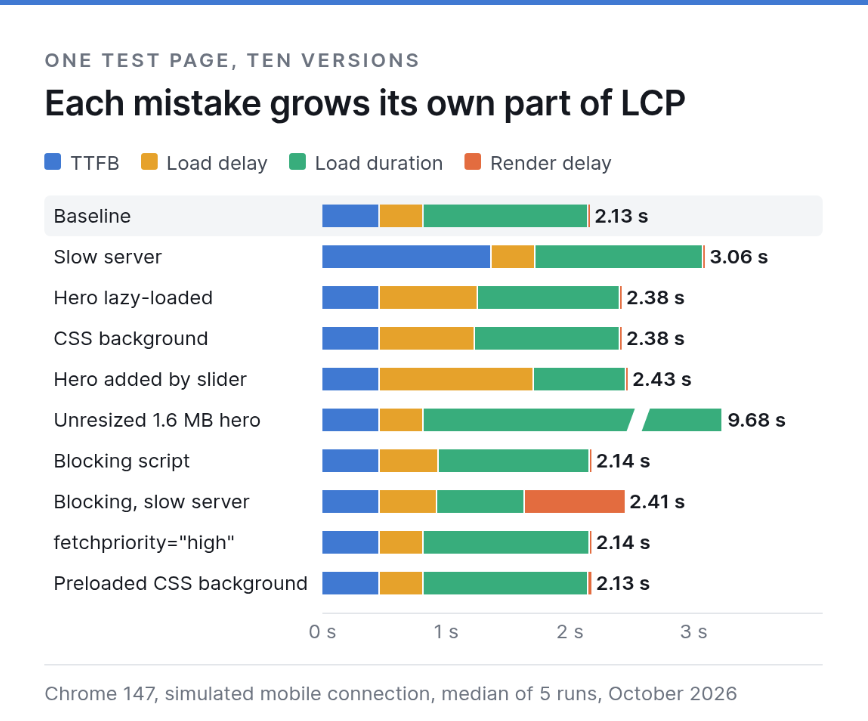
Each mistake showed up mainly in one part:
- The slow server inflated TTFB
- Lazy loading, the CSS background, and the slider inflated load delay
- The big file inflated the download
- The slow script inflated render delay
The parts also traded time. A hero that started later downloaded faster, because less was competing for the connection by then.
That’s why a mistake can look smaller in your total LCP than in its own part.
The slider added 890 ms of load delay but only about 300 ms to LCP.
One more result surprised us. On a lighter version of the same page, with 15 KB of HTML, CSS and JavaScript instead of 123 KB and no blocking scripts, the lazy-loaded hero cost just 8 ms.
On the typical page, it cost 256 ms.
The same mistake gets more expensive as the rest of your page gets heavier.
Time to First Byte: The Server’s Share
What is TTFB? It’s the time from the start of the navigation until the first byte of your HTML arrives. Google’s guidance on TTFB gives the thresholds below.
As a rough guide, Google calls 0.8 seconds or less good and anything over 1.8 seconds poor.
Nothing else can start before it, so every millisecond here moves your LCP one for one.
Our slow-server version added 897 ms to TTFB and 928 ms to LCP.
If WordPress builds every page from scratch in PHP, your visitor waits for that work before anything else happens.
Here’s how you can reduce TTFB:
- Serve cached HTML with a caching plugin or your host’s page cache — see our guide to effective cache plugins for WordPress
- Put a CDN in front of your HTML, not just your images, if your visitors are far from your server — our roundup of CDN services to speed up your website is a starting point
- Cut redirect chains, like http to https to www
- Make sure tracking parameters don’t skip the cache
Google points out that unique URL parameters used for analytics can send every request back to your origin server.
Resource Load Delay: The Wait Before the Download
Load delay starts when the first byte of HTML lands and ends when the browser requests your LCP image. A high LCP image load delay means the browser found out about the image late.
The browser can only request an image it knows about.
The quickest way for it to find out is a plain <img> tag in your HTML, which the preload scanner spots right away.
Three common patterns hide the image from it. You’ve probably shipped at least one of them, and all three showed up in our test.
When the Hero Is Lazy-Loaded
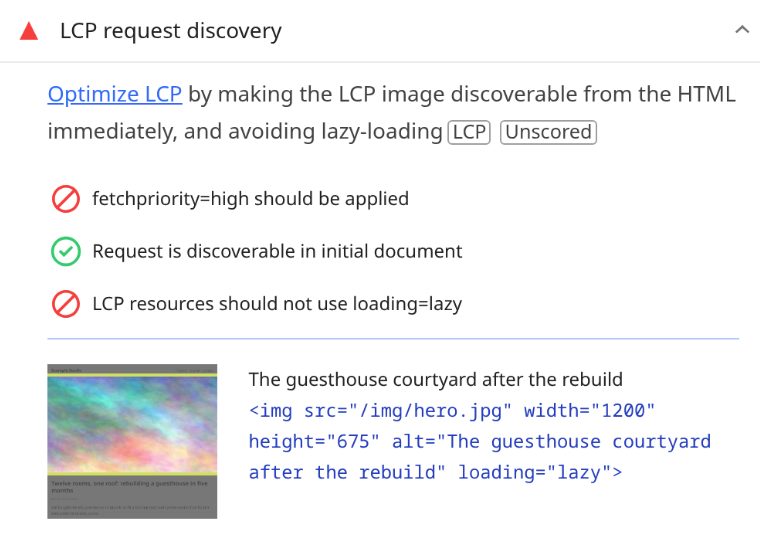
With loading="lazy", the browser waits until layout confirms the image is in the viewport.
On our page, that pushed load delay from 340 ms to 775 ms.
Google’s guidance is blunt here. Never lazy-load your LCP image. Most performance plugins let you exclude the first image from lazy loading in one setting.
Lighthouse used to report this as “Largest Contentful Paint image was lazily loaded”. Since Lighthouse 13, it’s one of the checks in the LCP request discovery insight.
Hero Images Set in CSS
If your theme sets the hero as a CSS background, the browser only learns about that LCP background image after it downloads and parses the stylesheet.
That cost us 413 ms of extra load delay.
A preload hint in the head brought load delay back to 337 ms and LCP back to the baseline:
<link rel="preload" as="image" href="/hero.jpg" fetchpriority="high">
Images Added by JavaScript
Sliders and some lazy-loading libraries insert the image, or its real src, with a script. Your image now waits for that script to download and run.
This was the worst of the three on our page. Load delay grew to 1,230 ms, more than three times the baseline you’d get from a plain tag.
If the first slide is your LCP element, render it as a normal <img> in the HTML and let the script take over after.
What About fetchpriority?
Browsers don’t load images at the highest priority by default, because images don’t block rendering.
The fetchpriority="high" attribute lifts one image above the others. Google advises you to use it on no more than one or two.
On our page it changed nothing, because the browser was already requesting the hero as soon as the HTML arrived.
Resource Load Duration: When the File Really Is Too Big
Load duration is the download itself. It’s the part most image advice targets, and the part Chrome’s data shows is usually the smallest.
There’s one case where it takes over. We swapped the hero for the unresized 3000 px original, 1.6 MB instead of 92 KB.
Load duration jumped from 1.3 seconds to 8.9 seconds, and LCP went to 9.7 seconds.
If you upload photos straight from a camera or phone, check what size actually reaches the browser. Then tighten it up:
- Resize the hero to the largest size it’s shown at, and let
srcsetserve smaller files to phones - Compress it, and consider WebP or AVIF — our guide to image optimisation for WordPress covers both
- Serve it from your own domain when you can, since a new domain needs a new connection first
- Give it a long cache lifetime so your returning visitors skip the download
Keep your page’s head lean, too. The more requests start early, the more of them share the bandwidth with your hero.
Element Render Delay: The Image Is Here but Not on Screen
Render delay is the time between your image arriving and the browser painting it. If your LCP element render delay is high, the image is ready and waiting. Google lists the usual causes:
- Stylesheets or synchronous scripts in the head that are still loading
- The element isn’t in the page yet, because a script still has to add it
- A/B testing code hiding the element until it decides what to show
- Long tasks keeping the main thread busy, since browsers paint images on the main thread
Our test showed the catch.
A 19 KB script in the head without defer cost almost nothing, because it finished before the image arrived.
Then we served the same script from a server that took 1.2 seconds to answer.
Render delay jumped from 12 ms to 806 ms, with the image fully downloaded and waiting.
A blocking script shows up as render delay only when it finishes after your image is ready.
Speed up the image, and an old blocking script can suddenly become your bottleneck.
Lighthouse used to flag this under “Eliminate render-blocking resources”. Since version 13, you’ll find it in the Render-blocking requests insight.
To clear the path:
- Add
deferto any script your first screen can live without - Load third-party tags with
asyncordefer - Inline the CSS the top of your page needs, and load the rest without blocking
- Break up long tasks in your own JavaScript
Largest Contentful Paint on WordPress: What Core Already Does
WordPress core has handled part of this for years, so check what you’re overriding before you add another plugin. The quantified impact comes from the WordPress 6.3 field analysis.
- Since 5.5, it adds
loading="lazy"to images that have width and height - Since 5.9, it skips lazy loading on the first content image. Tests on 50 popular themes showed LCP gains, with pages up to 30% faster
- Since 6.3, it adds
fetchpriority="high"to the image it expects to be the LCP image. The release notes say that typically improves LCP by 5 to 10% - Also in 6.3, the first three content images stay eager instead of just one
- The size floor: only images larger than 50,000 pixels, width times height, qualify for the priority hint. A 200×200 image doesn’t
Core only sees the images it renders itself, not the ones your theme or plugins add some other way.
A hero set in CSS or added by a slider script never gets these attributes, so you’ll need to check those by hand.
Some optimization plugins and page builders add their own lazy loading on top. If yours lazy-loads every image, exclude the hero.
How to Improve Largest Contentful Paint, in Order
If you want to improve LCP without guessing, work through the parts in this order:
- Find your LCP element on mobile and on desktop
- Read the four parts and spot the one that’s out of proportion
- Clear the delays first: make the image discoverable, drop lazy loading on it, unblock rendering
- Then work on TTFB with caching and fewer redirects
- Then shrink the image, and measure again after every change
To fix Largest Contentful Paint, start with the part you weren’t looking at. On most slow sites, that’s not the image.
Compare each change against your own page, not against someone else’s score. The parts show where your time went, and the total shows whether you got it back.
Frequently Asked Questions
What is a good LCP score?
2.5 seconds or less at the 75th percentile of page loads, measured separately for mobile and desktop. Over 4 seconds counts as poor.
Does LCP affect SEO?
LCP is one of the Core Web Vitals, and Google says good Core Web Vitals align with what its core ranking systems seek to reward.
Why is my LCP high when my image is small?
Because the image is rarely the slow part. Check your TTFB and resource load delay first, then look for blocking scripts that finish after the image arrives.
What’s the difference between LCP and FCP?
First Contentful Paint marks when the first content appears, such as your site header. LCP waits for the largest element in your viewport. Google defines FCP on web.dev.
