
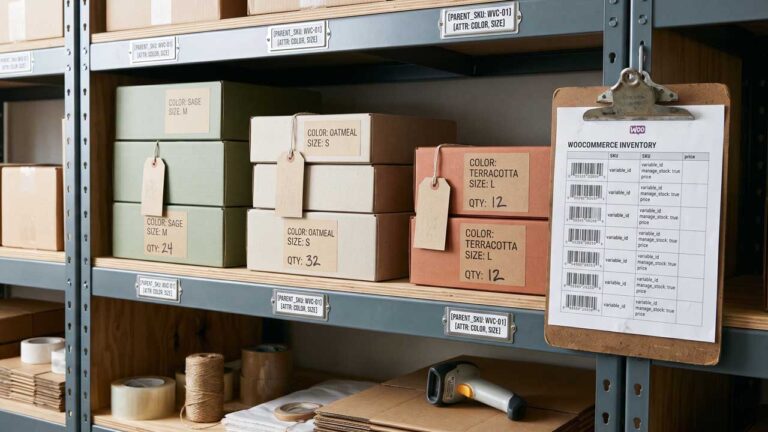
A customer opens a shirt page, selects black and large, and gets “out of stock.” Your inventory sheet says four units. The dropdown on the same page lists a medium that vanished last month and never came back.
Nothing is broken in the way the debug log understands broken. The product page is three systems stacked on top of each other: a taxonomy that decides which options exist, an inventory layer that decides which combinations can be bought, and a structured-data layer that tells Google what the set contains. Each can be internally consistent while the page is wrong.
This is the order to check them in. Attributes first, because they define the rows. Stock second, because it decides which rows survive. Schema last, because it can only describe a catalog that is already correct.
The Three Layers and How They Drift
WooCommerce stores a variable product as a parent post with child posts. The parent holds the attributes and the shared content. Each child is a variation with its own price, stock, image, and shipping data. The variable product documentation describes the parent-child relationship and the fields each variation can override.
Drift happens at the seams:
- An attribute value is added to the parent but no variation is generated for it. The dropdown may show the value, then fail to resolve a price.
- A variation is generated but never priced. It exists in the database and is invisible in the storefront.
- Stock is managed at the parent level for one product and at the variation level for another, so the same spreadsheet logic produces different behavior.
- The parent’s structured data advertises a price range that includes a variation nobody can buy.
Each of those is a five-minute fix once you know which layer produced it. The expensive version is changing theme templates or schema plugins to compensate for a data problem.
Global Attributes Are a Taxonomy. Custom Attributes Are Not.
WooCommerce gives you two ways to define an attribute, and the difference is structural rather than cosmetic.
A global attribute is registered in Products → Attributes and stored as a WordPress taxonomy, usually with a pa_ prefix. Its terms are shared across every product that uses it. Rename “Blue” to “Cerulean” once and every product updates. A global attribute can also have archives enabled, which creates URLs such as /color/black/ with their own product listing. The product taxonomy documentation covers both the shared definition and the archive setting.
A custom attribute is defined on a single product. It is not a taxonomy, its values are not shared, and it cannot power an attribute archive. It is the right choice for a one-off specification that should not become store-wide vocabulary — fabric weight, a model year, a finish that only one supplier uses.
Most stores should define color, size, and material globally. The practical reason is maintenance, but there is a second reason: filters, attribute archives, and most schema mapping code are built around taxonomies. A custom “Color” field will not appear in a pa_color filter, and a mapping that only checks pa_color will miss it.
List the global attributes your store actually has:
wp eval '
foreach ( wc_get_attribute_taxonomies() as $attribute ) {
    printf(
        "%s  slug=%s  type=%s\n",
        $attribute->attribute_label,
        $attribute->attribute_name,
        $attribute->attribute_type
    );
}
'
If the output shows color and size, the taxonomy names are pa_color and pa_size. If it shows nothing, every attribute on the site is custom, and that is worth fixing before you build filters or variant markup on top of it.
There is a third state that causes most of the confusion: an attribute set to Any in the Variations tab. “Any” tells WooCommerce that a variation applies regardless of that attribute’s value, which reduces the number of rows. It also means the variation no longer maps one-to-one to a single combination, so a script that expects every row to have a concrete color and size will misread the catalog. Treat “Any” as a deliberate exception, not a shortcut to avoid generating variations.
Where Stock Actually Lives
A variable product can manage inventory in two places, and the variation setting wins for that variation.
At the parent level, the Inventory tab has “Manage stock at product level.” Turn it on and the parent holds a quantity that applies to the product as a whole. At the variation level, each row has its own Manage stock checkbox, stock quantity, backorders setting, and low stock threshold. If a variation manages its own stock, that number is authoritative for that row. The documentation notes that when product-level inventory options are not configured, the variation falls back to the product-wide low stock threshold.
That fallback is harmless. The dangerous part is the display.
WooCommerce has a store-wide setting under Products → Inventory to hide out-of-stock items from the catalog. The variable product documentation has a dedicated section on hiding out-of-stock variations from dropdowns. When that setting is on, a sold-out combination can disappear from the selector entirely. The page then looks like it has fewer options than your catalog does, and nobody notices the missing size until a customer emails.
Two rules follow:
- Check status and quantity separately.
is_in_stock()is true when backorders are allowed, even at zero or negative quantity. A row can be purchasable and still be a stock problem. - Decide whether hiding sold-out variations is right for this catalog. Hiding is good for apparel where a missing size is noise. It is bad when the absence of a size is itself information, or when you are trying to diagnose why a variation is not selling.
List every variation for one product with its attributes, status, and price:
PRODUCT_ID=123 wp eval '
$product = wc_get_product( (int) getenv( "PRODUCT_ID" ) );

if ( ! $product || ! $product->is_type( "variable" ) ) {
    WP_CLI::error( "Not a variable product." );
}

foreach ( $product->get_children() as $child_id ) {
    $variation = wc_get_product( $child_id );

    printf(
        "%d  %-40s  %-12s  qty=%s  price=%s\n",
        $child_id,
        implode( ",", $variation->get_attributes() ),
        $variation->get_stock_status(),
        $variation->get_stock_quantity() ?? "n/a",
        "" === $variation->get_price() ? "MISSING" : $variation->get_price()
    );
}
'
The %-40s column is deliberately wide because attribute slugs are ugly and you need to see them. qty=n/a means that row does not manage stock, so the parent or the store default decides availability. price=MISSING is the row that will fail at the dropdown even if stock is fine.
Why a Variation Disappears From the Dropdown
There are five common causes, and they are easy to distinguish once you print the data.
No variation exists for the combination. The parent lists black, white, and blue, but variations were only generated for black and white. The dropdown may still show blue because the attribute term is assigned to the parent, and selecting it resolves to nothing.
The variation exists but has no price. WooCommerce needs a price to render a purchasable option. A blank price field produces an option that cannot be bought.
The variation is out of stock and the catalog hides sold-out items. Covered above. The row is valid; the storefront is filter it out.
The attribute value is not assigned to the parent. A variation can reference a term that the parent no longer lists. The row stays in the database and stops rendering.
The variation was replaced by an “Any” rule. Someone reduced the variation count by setting one attribute to Any, and the removed rows never came back. The remaining rules may not cover every combination customers expect.
The fix for the first, fourth, and fifth is data cleanup. The fix for the second is a price. The third is a store setting. None of them require a template override, which is why the audit below starts from the database.
Audit Every Variable Product at Once
This script runs under WP-CLI with WooCommerce loaded. It reports missing prices, duplicate attribute combinations, and combinations that the parent’s attributes imply but no variation covers.
<?php
/**
 * Run with: wp eval-file audit-variable-products.php
 * Read-only. Prints one line per issue and a final count.
 */

$products = wc_get_products(
    array(
        'type'   => 'variable',
        'status' => 'publish',
        'limit'  => -1,
    )
);

$issues = 0;

foreach ( $products as $product ) {
    $children = $product->get_children();

    if ( empty( $children ) ) {
        WP_CLI::warning( sprintf( '%d %s: no variations', $product->get_id(), $product->get_name() ) );
        $issues++;
        continue;
    }

    $seen            = array();
    $covered         = array();
    $product_has_any = false;

    foreach ( $children as $child_id ) {
        $variation = wc_get_product( $child_id );

        if ( ! $variation ) {
            continue;
        }

        $attributes = $variation->get_attributes();
        ksort( $attributes );
        $key = implode( '|', $attributes );

        foreach ( $attributes as $value ) {
            if ( '' === $value ) {
                $product_has_any = true;
            }
        }

        if ( isset( $seen[ $key ] ) ) {
            WP_CLI::warning(
                sprintf( '%d: duplicate combination %s', $product->get_id(), $key )
            );
            $issues++;
        }
        $seen[ $key ]    = true;
        $covered[ $key ] = true;

        if ( '' === $variation->get_price() ) {
            WP_CLI::warning(
                sprintf( '%d: variation %d has no price', $product->get_id(), $child_id )
            );
            $issues++;
        }

        $quantity = $variation->get_stock_quantity();

        if ( $variation->managing_stock() && null !== $quantity && $quantity < 0 ) {
            WP_CLI::warning(
                sprintf(
                    '%d: variation %d has negative stock (%d)',
                    $product->get_id(),
                    $child_id,
                    $quantity
                )
            );
            $issues++;
        }
    }

    $values = array();

    foreach ( $product->get_variation_attributes() as $taxonomy => $terms ) {
        $taxonomy = str_replace( 'attribute_', '', $taxonomy );
        if ( empty( $terms ) ) {
            $product_has_any = true;
            continue;
        }
        $values[ $taxonomy ] = $terms;
    }

    if ( $product_has_any || empty( $values ) || count( $values ) > 3 ) {
        continue;
    }

    $combinations = array( array() );

    foreach ( $values as $taxonomy => $terms ) {
        $next = array();

        foreach ( $combinations as $combination ) {
            foreach ( $terms as $term ) {
                $next[] = $combination + array( $taxonomy => $term );
            }
        }

        $combinations = $next;
    }

    foreach ( $combinations as $combination ) {
        ksort( $combination );
        $key = implode( '|', $combination );

        if ( ! isset( $covered[ $key ] ) ) {
            WP_CLI::warning(
                sprintf( '%d: no variation for %s', $product->get_id(), $key )
            );
            $issues++;
        }
    }
}

WP_CLI::success(
    sprintf( 'Checked %d variable products; %d issues.', count( $products ), $issues )
);
Run it as a report, not a migration. It tells you which product to open, not what to change. The coverage check is intentionally capped at three attributes: above that, the Cartesian product grows faster than any real catalog, and the duplicate and missing-price checks are the ones that matter.
The script compares slugs, not labels. That is correct for matching variations to attribute terms, but it means a term renamed in the admin will look like a missing combination until the variation regenerates. Run the audit before and after a bulk edit, not during.
What WooCommerce Puts in the Page
Core WooCommerce emits Product structured data for the parent. For a variable product, the offers property is an AggregateOffer with lowPrice, highPrice, and offerCount. The Product structured data documentation explains those properties and the merchant listing requirements around them.
When the request targets a single variation — a variation-specific URL submitted to a feed, for example — core uses that variation’s price for the Offer and adds inProductGroupWithID, pointing back at the parent. That behavior is in the structured-data class in WooCommerce core.
What core does not emit is ProductGroup or hasVariant. So Google receives one Product with a price range. That is not invalid. It is a summary, and a summary is all you get.
The summary fails in three situations:
- The range advertises a price nobody can buy. A discontinued size at $19 sits in the catalog with zero stock, and
lowPricebecomes $19 while every purchasable variation is $49. - The variants differ in more than price. Material, pattern, or model number change the product enough that a single Product node cannot describe it.
- You want variant-level eligibility in merchant listings. Google’s product variant documentation exists because a parent and its variants are different entities, not different prices for one entity.
AggregateOffer and ProductGroup Are Different Claims
An AggregateOffer says: this is one Product, available at several prices. A ProductGroup says: this is a group of products that vary by specific properties, and here is each variant with its own offer.
Google recommends the group when variants are selectable on a single page, and it names productGroupID, variesBy, and hasVariant as the properties that establish the relationship. variesBy takes schema.org property URLs — https://schema.org/color, https://schema.org/size — not WooCommerce slugs. Each variant in hasVariant is a full Product with its own offers.
Do not replace Product with ProductGroup on every product. Simple products still need Product. The group is for the parent of a variable product, and only when you can populate the variants honestly.
Add ProductGroup Markup With a Filter
WooCommerce exposes woocommerce_structured_data_product, which receives the assembled array before it is printed. Filtering it lets you convert the parent node without maintaining a second schema plugin.
add_filter(
    'woocommerce_structured_data_product',
    function ( array $markup, $product ) {
        if ( ! $product instanceof WC_Product || ! $product->is_type( 'variable' ) ) {
            return $markup;
        }

        $children = $product->get_children();

        if ( empty( $children ) ) {
            return $markup;
        }

        $property_map = array(
            'pa_color'    => 'https://schema.org/color',
            'pa_size'     => 'https://schema.org/size',
            'pa_material' => 'https://schema.org/material',
            'pa_pattern'  => 'https://schema.org/pattern',
            'color'       => 'https://schema.org/color',
            'size'        => 'https://schema.org/size',
        );

        $varies_by = array();

        foreach ( array_keys( $product->get_variation_attributes() ) as $key ) {
            $taxonomy = str_replace( 'attribute_', '', $key );

            if ( isset( $property_map[ $taxonomy ] ) ) {
                $varies_by[] = $property_map[ $taxonomy ];
            }
        }

        $variants = array();

        foreach ( $children as $child_id ) {
            $variation = wc_get_product( $child_id );

            if ( ! $variation || '' === $variation->get_price() ) {
                continue;
            }

            $labels = array();

            foreach ( $variation->get_attributes() as $key => $value ) {
                if ( '' === $value ) {
                    continue;
                }

                $taxonomy = str_replace( 'attribute_', '', $key );
                $term     = taxonomy_exists( $taxonomy )
                    ? get_term_by( 'slug', $value, $taxonomy )
                    : false;

                $labels[] = $term instanceof WP_Term ? $term->name : $value;
            }

            $image = wp_get_attachment_image_url( $variation->get_image_id(), 'full' );

            if ( ! $image ) {
                $image = wp_get_attachment_image_url( $product->get_image_id(), 'full' );
            }

            $variant = array(
                '@type' => 'Product',
                'name'  => $labels
                    ? $product->get_name() . ' - ' . implode( ', ', $labels )
                    : $variation->get_name(),
                'sku'   => $variation->get_sku() ? $variation->get_sku() : (string) $child_id,
                'offers' => array(
                    '@type'         => 'Offer',
                    'url'           => $variation->get_permalink(),
                    'priceCurrency' => get_woocommerce_currency(),
                    'price'         => (float) $variation->get_price(),
                    'availability'  => $variation->is_in_stock()
                        ? 'https://schema.org/InStock'
                        : 'https://schema.org/OutOfStock',
                ),
            );

            if ( $image ) {
                $variant['image'] = $image;
            }

            $variants[] = $variant;
        }

        if ( empty( $variants ) ) {
            return $markup;
        }

        unset( $markup['offers'] );

        $markup['@type']         = 'ProductGroup';
        $markup['productGroupID'] = $product->get_sku()
            ? $product->get_sku()
            : (string) $product->get_id();

        if ( $varies_by ) {
            $markup['variesBy'] = array_values( array_unique( $varies_by ) );
        }

        $markup['hasVariant'] = $variants;

        return $markup;
    },
    10,
    2
);
Four details in that block matter more than the rest.
The filter runs for simple products too, which is why the type check is first. Returning early is cheaper than adapting the array and discovering later that every simple product lost its offer.
Variants without a price are skipped. A Product with an empty offers.price is worse than an omitted variant, because Google may report a critical error on the page instead of ignoring the row.
The variation permalink is the real one. get_permalink() on a variation appends the selected attributes to the parent URL, so the offer URL resolves to the same product with the option preselected. That keeps the markup consistent with what a customer can click.
productGroupID falls back to the product ID. Google asks for the parent identifier; a SKU is the natural choice, but many stores leave it blank. The ID is stable and unique, which is enough for grouping.
Test the output before trusting it. Purge the page cache first, then count the node types in the rendered HTML:
SITE="${SITE:?export SITE to your hostname first}"
SLUG="${SLUG:?export SLUG to the product slug first}"

curl -s "https://$SITE/product/$SLUG/" > /tmp/product.html

printf 'ProductGroup nodes:  %s\n' "$(grep -oE '"@type": *"ProductGroup"' /tmp/product.html | wc -l)"
printf 'hasVariant entries:  %s\n' "$(grep -oE '"@type": *"Product"' /tmp/product.html | wc -l)"
printf 'AggregateOffer left: %s\n' "$(grep -oE '"@type": *"AggregateOffer"' /tmp/product.html | wc -l)"
The first number should be 1, the second should match your purchasable variation count, and the third should be 0. If the second is lower than the count in the admin, the filter is skipping rows with blank prices — fix the prices, not the filter.
Run the result through the Rich Results Test as well. Counts in the page source prove the markup is present; the test proves Google can parse it.
Variation URLs Need One Canonical Model
WooCommerce appends variation attributes to the parent URL rather than creating a separate page per combination. That means a variation URL is a query-string view of the parent. Google’s variant guidance supports two designs: a single page where variants are selected without a reload, and multiple pages where each variant has its own URL.
Pick one and be consistent:
- Single-page model. The parent is canonical, the group markup describes the variants, and the variation query strings canonicalize to the parent. This is the default and the right choice for most stores.
- Multi-page model. Each variant URL is a real landing page with its own Product markup and an
inProductGroupWithIDreference. This is worth doing only when the variants are marketed separately and have enough search demand to justify separate pages.
The failure is mixing them: variation URLs submit to the sitemap while also canonicalizing to the parent. That gives Google two instructions about the same URL. If you run the multi-page model, the variant pages need their own content and internal links, not just a preselected dropdown.
Fix the Data Before the Markup
The order of operations is not arbitrary.
- Normalize attributes. Move color, size, and material to global attributes unless there is a reason not to. Turn on archives only for attributes that deserve landing pages.
- Generate the combinations you intend to sell. Use the Variations tab or a bulk tool, then run the audit script. Duplicate combinations and missing prices are data debt that compounds with every import.
- Decide the stock model per product. Parent-level stock for products where all variants share inventory; variation-level for products where sizes sell independently. Document which is which.
- Decide whether to hide sold-out variations. Check the store-wide setting and confirm it matches the merchandising intent.
- Add ProductGroup markup last. It describes whatever the first four steps produced.
- Re-run the audit after every import. Supplier feeds are the most common source of new duplicate and unpriced rows.
A clean catalog is not the same as a good product page. The WooCommerce theme guide covers what the template should own, the sales plugin guide covers the merchandising layer around the product, and the reports guide is how you confirm that variation-level sales match what the dropdown implies.
If the product page is also carrying gallery images or video, the WooCommerce gallery guide covers the media side; variation images are set per row and fall back to the parent when blank. If the store is still being configured, the WooCommerce setup walkthrough covers the product, tax, and shipping settings that surround this one. And if the catalog is large enough that variation queries show up in page load times, the WooCommerce scaling guide is the next read.
FAQ
What is the difference between a variable product and a variation?
A variable product is the parent: the page customers land on, with shared description, attributes, and media. A variation is a child row with its own price, stock, SKU, image, and shipping data. The parent defines which combinations exist; the variations are the combinations.
Should product attributes be global or custom?
Use global attributes for anything shared across products or used in filters, archives, or variant markup. Use custom attributes for one-off specifications that should not become store-wide taxonomy terms. Most stores should define color, size, and material globally.
Why is a variation not showing on the product page?
Check five things in order: the combination has no variation row, the variation has no price, it is out of stock and the catalog hides sold-out items, the attribute term is no longer assigned to the parent, or an “Any” rule replaced the row. The WP-CLI audit in this article identifies the first three directly.
Does WooCommerce manage stock per variation?
Yes, if the variation has its own Manage stock setting. That quantity is authoritative for the row. If the variation does not manage stock, the parent-level inventory or the store default applies. Backorders can make a zero-stock variation purchasable, so check status and quantity separately.
Does WooCommerce add ProductGroup schema automatically?
No. Core emits Product with an AggregateOffer price range for the parent, and adds inProductGroupWithID when a single variation is targeted. It does not emit ProductGroup or hasVariant. You can add those through the woocommerce_structured_data_product filter.
Is AggregateOffer bad for SEO?
It is not invalid, and it is accurate when the range reflects buyable variants. It becomes misleading when a discontinued or unpriced row sets the low price. Use ProductGroup when you want Google to understand the variants as separate products with their own offers.
How many variations are too many?
There is no hard limit, but the admin UI switches to AJAX dropdowns when a product has more than 30 variations, and the coverage of combinations grows quickly. If customers cannot reasonably browse the options, split the product by a defining attribute instead of multiplying rows.
Should variation URLs be indexed?
Only if you are running the multi-page model and each variant is a real landing page with its own content. In the default single-page model, variation query strings should canonicalize to the parent and stay out of the sitemap.
