
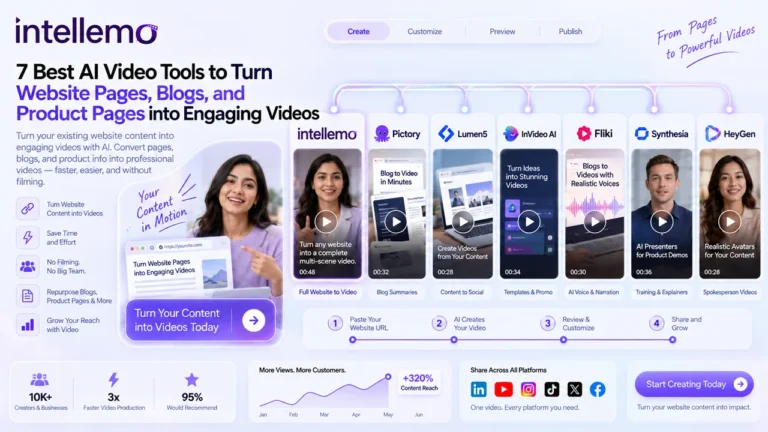
The fastest way to turn a website page into a video is to feed content you already have into a tool that reads it and builds the video for you. You did the hard part when you wrote the page. Most visitors still scroll past the text, which means video is how you reach the people who never finish reading.
That’s the whole premise. Below are seven AI video tools that handle this job well, ordered from most complete to most specialized.
If you want the wider landscape first, our roundup of the best AI tools covers the rest of the stack — this list stays focused on video.
One thing worth saying up front: nearly all of these work fine on a WordPress site out of the box, but the embed is where most people hurt themselves. I’ll cover that near the end — don’t skip it.
At a glance
| Tool | Starting price | Input | Avatars | Best for |
|---|---|---|---|---|
| Intellemo AI | Check site | URL, text, idea | Yes | Full production workflow from a URL |
| Pictory | Free / $29mo | URL, text | Stock + custom (Pro) | Long blog posts |
| Lumen5 | Free / $29mo | URL, text | No | Brand control at volume |
| InVideo AI | Free / ~$25mo | URL, prompt, template | Yes | Template-driven drafts |
| Fliki | Free / $28mo | URL, text | No | Narration and voice-first video |
| Synthesia | Free / $29mo | Script | 125–240+ | Corporate training and onboarding |
| HeyGen | Free 3 vids / $29mo | Script | 500+ | Expressive, human-like presenters |
Prices are monthly-billed entry tiers as of October 2026. Annual billing drops most of these by roughly 20–40%.
1. Intellemo AI
Intellemo AI turns an idea, a product message, or a website URL into a complete multi-scene video rather than a short, disconnected clip. Hand it a URL and it will analyze what’s available — brand information, logo, product context — and use that to shape both the script and the visuals. For most people, that’s the difference between a tool that needs a brand brief and one that doesn’t.
What sets it apart is the guided production workflow. Instead of jumping from text straight to a finished render, it puts review points in the middle. It writes the script first, then builds an Audioboard where you can check pronunciation, pacing, tone, emotion, and timing before moving to a Storyboard for visual review.
Individual Storyboard scenes can be revised without rebuilding the whole video. You can change character appearance, background, camera angle, product placement, lighting, composition, or visual style while leaving approved scenes untouched. When you’re turn a product page into a product video, that matters — you can fix the one scene where the product looked wrong instead of starting over. For longer structured content, the AI long video generator workflow is built for exactly that shape.
Voice, visuals, lip-sync, sound, and AI-generated music all happen inside the same process, so you’re not bouncing between four tools before you get an export.
2. Pictory
Pictory is the pick for long blog posts, and it summarizes rather than transcribes. You paste an article URL, it reads the whole thing, pulls out the sentences that carry the point, and turns them into a short video with matched stock footage and captions. There’s an AI voiceover you can swap for a different tone.
It handles a 2,000-word post far better than most competitors, because it condenses before it renders. You will still replace some auto-picked visuals, especially on technical topics where the AI tends to misread abstract ideas. Budget ten to fifteen minutes of cleanup per video and you’ll land somewhere genuinely usable.
The pattern that matters: for a listicle or how-to with clean subheadings, the first pass gets you close, because the structure the tool needs is already sitting in your writing. Posts that meander give it less to work with.
Pricing: free tier (limited, watermarked) or Starter at $29/month. Professional is $59/month and unlocks custom avatars and voice cloning.
3. Lumen5
Lumen5 is built for marketing and social video, and it leans on a storyboard you control scene by scene. Paste your blog post, the AI picks the strongest sentences and pairs them with visuals, then hands you a storyboard where you set the text and footage for each scene before exporting.
Where it stands out is brand control. You can lock your fonts, set brand colors, and keep your logo on every frame so every video matches the look of your site. For a team publishing often, that consistency saves you rebuilding the same style every time.
The trade-off is time. Because you shape each scene by hand, you get more say over the result and you also do more of the work. It suits people who want the final video to feel on-brand rather than generic, and who don’t mind a slower build.
Pricing: free Community tier (watermarked, 720p, five videos a month), Basic at $29/month, Starter at $79/month.
4. InVideo AI
InVideo AI works like a video version of a drag-and-drop design tool, with a large template library sitting behind an AI that does the assembly. Give it a URL or a plain text prompt and it builds a full video from templates plus a deep stock library. The AI voiceovers have improved noticeably and now sound closer to natural speech than they did a couple of years ago.
It’s a strong choice when you want to turn a blog into a listicle video or a product page into a short narrated demo. The template range lets you match format to platform, whether that’s a square social post or a wider YouTube cut.
It’s less hands-off than a pure summarizer, so expect some editing after the first draft. Check the export limits on the free plan before you build — it often lets you preview a video but not publish it, which is a rough way to find out.
Pricing: free plan with limits, paid from roughly $25/month.
5. Fliki
Fliki leads on voice, which is the whole point if the video is narrated. It has thousands of neural voices across dozens of languages and can clone your voice from a short audio clip, so your videos can sound like you. You paste a blog URL or copy text, and it builds a scene-by-scene video at a size you set.
This is good for content designed primarily for the ears — explainer videos, narrated walkthroughs, podcast-style posts. Articles around 1,500 words typically become two-to-three minute videos with matched visuals and captions already set up.
If you publish in multiple languages, the voice library is the deepest on this list. You can produce the same video in several languages without switching tools. The visuals are stock and AI clips rather than avatars, which makes it a strong fit for blogs and explainer pages and a poor fit for speak-to-camera content.
Pricing: free tier with about five minutes a month in HD, Standard at $28/month, Premium at $88/month.
6. Synthesia
Synthesia creates an avatar presenter video from your page without using a camera. You type your script, pick a presenter, and the AI builds a body that speaks it on screen. When you want a face on your talking-head video but not your own face, this is the established option.
It’s built for training material, onboarding pages, and product walkthroughs — places where a face on screen builds more trust than stock footage. A lot of companies use it for customer-facing explainers because it reads easily and the lips move at a believable pace.
The production reads as corporate and clean rather than film-like, which makes it better suited to business than to brand films. It’s priced for teams, not individual bloggers. One useful feature: the same script can be run through it in many languages, so a single video can serve multiple markets. If you need a broader view of how presenter-led video performs, our guide to creating videos that convert covers the format decisions that matter more than the tool.
Pricing: free Basic tier (watermarked, no download), Starter at $29/month, Creator at $89/month. Annual billing drops Starter to about $18/month.
7. HeyGen
HeyGen does the same basic job as Synthesia but pushes harder on avatar realism. The presenters move more expressively, and a page that reads like a spokesperson video doesn’t land quite as stiff as a static talking head. You provide a script, choose a character, and it generates a video oriented to camera that sounds more like a person than a reading.
It fits founder-style videos or brief product intros where you want personality on screen instead of a flat corporate read — a welcome video on a landing page, an introduction on a product page.
Like Synthesia, it removes the need to record yourself, which is genuinely useful when you’re producing video across many pages. It also does voice cloning and translation, so you can scale one avatar into several languages.
Pricing: free tier with three videos a month, Creator at $29/month (about $24/month annual), Pro from $49/month.
Fitting AI video into a WordPress site
This is where most published guides stop, and it’s the part that actually decides whether your video helps or hurts.
Don’t autoplay. An auto-playing embed with sound is the fastest way to tank your Core Web Vitals. Visitors who came to read will leave, and a bounce on a high-traffic page drags the whole session metric down. Click-to-play costs you nothing in engagement and keeps the page fast.
Lazy-load the embed. WordPress makes this straightforward: paste the embed inside a native <iframe loading="lazy"> block rather than a heavy page builder element. Most page builders have a lazy-load toggle — if yours doesn’t, this is one of the more reliable reasons to keep video embeds out of them.
Watch the third-party script. Each vendor loads its own JavaScript player. Three tools on one post means three players, three stylesheets, and three chances to hurt your Largest Contentful Paint. One video per page is the safe default.
Self-host if the video is central. If a video is the reason someone lands on the page, embed it on your own host and let it serve as a normal <video> element. You lose a few vendor features, you gain control over caching, poster images, and preload behaviour — which matters if you’re chasing a faster page overall. Our measured walkthrough of WordPress speed optimization shows how quickly third-party scripts add up once you start measuring a real page.
Mark it up. Video schema (VideoObject) is one of the easier structured-data wins available in WordPress, and it makes your video eligible for a richer result. It’s worth doing once you’ve published videos consistently rather than per-post as an afterthought.
Measure it separately. Video embeds don’t play nicely with default analytics views, because most vendor players load in an iframe. If you want to know which videos actually get watched, you’ll need dedicated event tracking — our guide to excluding internal traffic in GA4 for WordPress covers the adjacent problem of keeping your own sessions out of the numbers.
None of this is complicated, but it’s the difference between a video that helps your rankings and one that quietly costs you speed. If your organic traffic is the priority, it’s worth reading our WordPress SEO overview before you decide video is the next lever to pull.
Frequently Asked Questions
How do AI video tools turn a written page into a video?
Most take your text or a short prompt, shape it into a scene-by-scene script, then add matching visuals and a voiceover before rendering. You review the draft and adjust anything that misses the mark before exporting.
Do I need to appear on camera to make these videos?
No. Most use stock media and AI voiceovers, and some use digital avatars, so you never have to film yourself. If you want a human face on screen, an avatar can present your script instead.
Which pages are worth turning into videos first?
Start with pages that already perform or that carry buying intent — your most-read posts and your key product pages. Turning proven content into video reaches people who would never scroll to the end of the page.
Which of these is best for WordPress specifically?
Any of them will work, since they all produce standard embed codes. Pick based on your content type: Pictory for long articles, Lumen5 or InVideo for high-volume social, Synthesia or HeyGen for training and product walkthroughs. Then read the section above before you embed anything, because the embed method matters more than the tool choice.
Closing thoughts
The right approach comes down to the page in front of you and what you want the video to do. A long blog post needs something that summarizes before it builds. A product page often works better as a short narrated demo or a spokesperson clip. Match the format to the page type rather than forcing one style onto everything you publish.
The practical move is to pick one of your best-performing pages, run it this week, and study how the draft turns out. That first test tells you more about fit than any feature list — including this one.
