
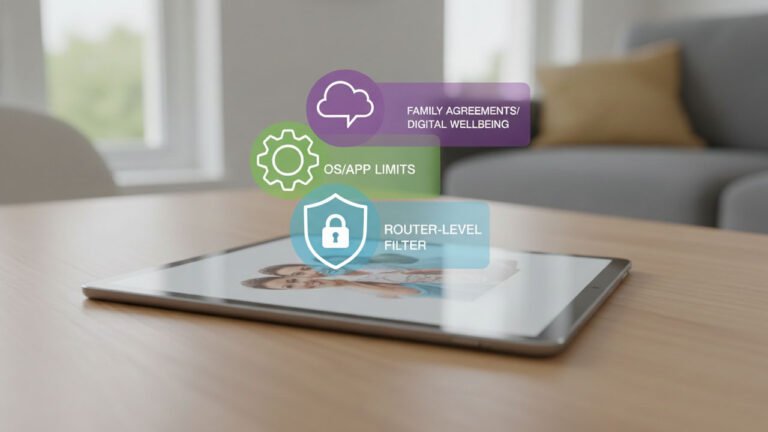
Parental control on tablet devices works best when it is layered. Most families need more than one setting: limits for apps and purchases, boundaries for screen time, filters for content, and a reliable way to understand how the device fits into a child’s day.
Table of Contents
Findmykids is useful here because it covers more than one part of the problem. It offers app usage statistics, real-time location, place alerts, Loud Signal, Sound Around, and SOS, so parents can manage digital habits and everyday routines together instead of treating tablet control as a single on-off restriction.
What parental control on a tablet should actually cover
A good setup usually does four things well:
- limits access to apps, purchases, and unsuitable content
- sets clear boundaries around daily screen time
- protects time for school, sleep, and offline activities
- gives parents a predictable way to check in when a child is out or not answering
That last part matters more than it may seem at first. A tablet is often not just a device for games. It can also be messaging, streaming, browsing, school portals, maps, and social apps in one place. If you only block downloads but never look at how the tablet affects the day itself, the setup stays incomplete.
Set the rules before you set the restrictions
The most effective parental control on tablet devices usually starts with a short family agreement. It does not need to be long. It can be as simple as no entertainment apps during homework, no tablet in bed, no hidden purchases, and no new app downloads without permission.
Once expectations are clear, device settings stop feeling random. They support rules that were already explained.
This matters even more with older kids. Teenagers usually react worse to vague control than to clear structure. “No tablet after 10 PM” is easier to accept than restrictions that seem to change with the mood of the day.
Use built-in tablet controls as the first layer
Built-in controls are worth using because they set hard limits on the device itself.
iPad
Apple’s Screen Time can block app installs and deletions, restrict in-app purchases, limit web content, and apply age-based content restrictions.
Android tablets
Google Family Link can set daily screen time limits, lock the device during downtime, and manage app access through Google Play controls.
Amazon Fire tablets
Amazon Fire parental controls can lock features behind a password, while Amazon Kids tools can set daily limits and restrict categories such as apps and video.
These tools are useful when the goal is to block, hide, or restrict. What they do not always give you is a broader view of habits, routines, and safety outside the house. That is where Findmykids becomes the more practical second layer.
Where Findmykids adds real value
One of the most useful parts of Findmykids for tablet control is visibility. App usage statistics help parents see which apps take time and how that time is distributed, so decisions can be based on actual patterns instead of guesswork.
The second advantage is routine. Findmykids offers real-time location and place alerts, so parents can set common places and receive notifications when a child arrives or leaves. That is useful for school, tutoring, sports practice, or the trip home.
The third advantage is direct contact when a child does not respond. Loud Signal can ring the child’s device regardless of silent settings, which helps when the tablet or phone is buried in a backpack or ignored in a noisy place.
There is also Sound Around, which lets parents hear what is happening around the child’s device in real time when there is a safety concern. Children are notified when live listening is turned on, which makes the feature easier to use within clear family rules.
For families giving a child more independence, SOS can matter as well. It can send an emergency alert with the child’s location, which helps parents understand the situation faster.
A tablet control setup that works in daily life
A practical setup usually looks like this:
- Agree on the basic rules first.
Cover bedtime, downloads, paid content, school use, and what counts as an exception. - Turn on the tablet’s built-in restrictions.
Use them for purchases, adult content, browser limits, and downtime. - Use Findmykids for visibility and routine check-ins.
Review app habits, set place alerts, and keep safety tools ready when needed. - Review patterns once a week, not every hour.
Constant checking creates tension. A short weekly review is usually enough to notice what needs to change. - Adjust the setup as your child gets older.
A thirteen-year-old and a sixteen-year-old should not have the same level of restriction.
Mistakes that weaken parental control on a tablet
The first mistake is trying to solve everything with blocking alone. Limits matter, but they do not replace conversation.
The second mistake is reacting too strongly to every alert. When every notification turns into an interrogation, the system stops feeling useful and starts feeling punitive.
The third mistake is using the same setup for every age. As kids grow, parental control on tablet devices should move from full restriction toward clearer boundaries and more responsibility.
The fourth mistake is treating every problem as a technical one. A child who stays up too late with a tablet often does not need more filters. They need a consistent evening rule and a device-free sleep window.
Final thoughts
Parental control on tablet devices works best when hard restrictions and day-to-day visibility work together. Use the tablet’s own settings to control purchases, content, and downtime. Use Findmykids to understand app habits, manage routine check-ins, receive place alerts, and respond quickly when something feels wrong.
For families that need more than basic blocking, Findmykids is a practical next step.
FAQ
Can you put parental controls on any tablet?
In most cases, yes. iPads offer Screen Time, Android tablets can be managed through Family Link, and Fire tablets have Amazon parental controls. The exact tools differ, but all three provide at least a basic layer of limits.
Should parental control on a tablet begin with app blocking?
No. It should begin with rules. Blocking works better when a child already understands what is allowed, what is limited, and why.
What is the main advantage of Findmykids here?
It goes beyond hard restrictions. Parents can review app usage, receive place alerts, use Loud Signal when a child is not responding, and rely on SOS or Sound Around when a faster safety check is needed.
