
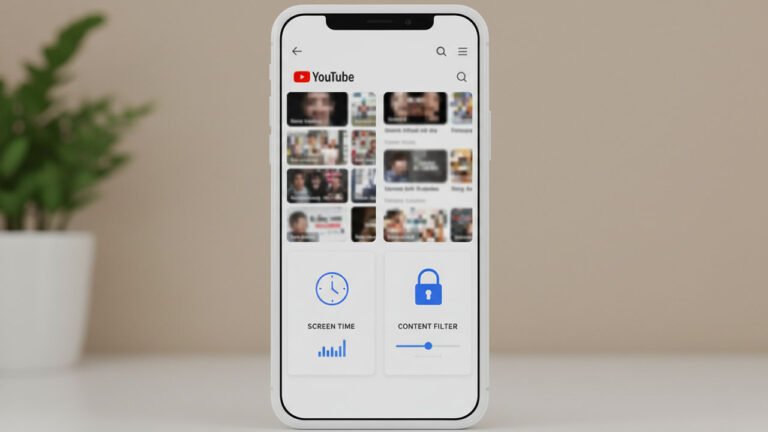
YouTube parental control works best when it covers two things at once: what a teen can watch and how much time YouTube gets each day. Kids360 is useful here because it brings screen time limits, schedules, app blocking, app usage reports, and YouTube monitoring into one setup, while YouTube’s own tools handle content settings and account-level restrictions.
Table of Contents
That matters because YouTube is not just a video app. For many teens, it also works as a search engine, a recommendation feed, a Shorts stream, and a background habit that fills study breaks, late evenings, and downtime. In practice, effective YouTube parental control usually needs both layers: YouTube for content settings and Kids360 for daily limits, routines, and follow-through.
What YouTube parental control should do
A useful setup should solve practical problems, not just add a filter and hope for the best. It should help you:
- limit endless viewing and Shorts scrolling
- reduce exposure to unsuitable content
- keep YouTube out of sleep and study hours
- see whether the app is becoming a daily habit
- set rules that are clear enough to follow
Kids360 supports that broader approach with daily screen time limits, schedules, app blocking, app usage statistics, and daily reports. It also lets parents monitor what a child watches on YouTube as part of its internet safety features.
Use YouTube’s built-in controls for content
For children under 13, or the applicable age in your region, YouTube lets parents create a supervised kid account and choose a content setting that limits what the child can find and play. Parents can create this from the YouTube app, on the web, or through Family Link.
Inside YouTube Family Center, parents can adjust content settings, block specific channels, clear history, disable autoplay, pause watch history, pause search history, and set a daily Shorts feed limit. As of March 2026, that Shorts limit can be set to zero, which makes it more useful for families trying to stop passive scrolling rather than just reduce it.
For older teens, the situation changes. Once a child turns 13, or the applicable age in the country or region, they can access YouTube without supervision. At that point, Restricted Mode can still help filter out most mature content. When Restricted Mode is turned on through Family Link, the child cannot change it on signed-in devices. It is still a narrower tool than full parental control, though, because it works as a filter rather than a complete safety system.
Where Kids360 fills the gap
YouTube’s own controls are useful, but they do not cover the whole day. That is where Kids360 becomes the practical center of the setup.
Kids360 lets you set daily screen time limits and schedules, so YouTube does not quietly spread into homework time, late evenings, or the first hour after waking up. Once time is up, the device can lock while essential communication apps remain available. That makes limits firmer without cutting off basic contact.
It also lets you block apps individually or by category and view daily reports on the apps your child uses, including time spent and app activity. That matters because YouTube overuse is often part of a broader pattern that also includes games, social media, and constant switching between entertainment apps.
On the internet safety side, Kids360 lets parents monitor what a child watches on YouTube, check search history, block adult websites, and disable internet access in selected apps. That gives families a more complete setup than relying on YouTube settings alone.
Another feature makes the system easier to live with: Kids360 can reward extra screen time for completing developmental tasks or parent-created tasks. In practice, that turns limits into a routine with feedback, not just a constant stream of no’s.
How to set up YouTube parental control on a teen’s phone
The best YouTube parental control setup usually starts with a short conversation, not a surprise restriction. Explain what you want to fix. Maybe YouTube is cutting into sleep, homework, or attention. Maybe Shorts has become the default every time there is a spare minute. When the reason is clear, the rules feel less arbitrary.
After that, the order is simple.
First, use YouTube’s own controls for content. Set up a supervised experience where it fits, adjust the content level, disable autoplay, and use channel blocking or history controls if needed. For older teens, use Restricted Mode when supervision no longer applies.
Second, use Kids360 as the main daily control layer. Set a clear daily time budget, add a schedule for school nights and sleep hours, and make YouTube part of a wider screen routine rather than a special case. That is usually more effective than chasing one video, one channel, or one trend at a time.
Third, review what is happening after a few days. If the main issue is binge-watching, tighten the schedule. If the issue is compulsive checking, reduce access windows. If recommendations are drifting into unsuitable content, adjust YouTube’s content settings and history controls. This works better than setting everything once and forgetting it.
Common mistakes parents make
Treating content filtering as the whole solution
A safer feed does not automatically fix excessive viewing. A teen can still spend too much time on perfectly acceptable videos. That is why time limits and schedules matter as much as content restrictions.
Focusing only on YouTube and ignoring the rest of the phone
If YouTube is blocked but the same pattern simply moves to Shorts alternatives, games, or social apps, the habit itself stays in place. Kids360 works better when used as a routine tool across the device, not only as a YouTube patch.
Relying on a one-time setup
Teens’ habits change fast. Exam season, vacations, sports, and new creators can all change how YouTube fits into the day. Parental control works better when it is reviewed and adjusted instead of treated like a one-time technical fix.
The most effective approach
YouTube parental control is not about winning a fight with one app. It is about making the app fit the rhythm of real life.
That is why a layered approach works better. Let YouTube handle account-level content controls. Let Kids360 handle the daily structure: screen time, schedules, app blocking, usage reports, and the broader internet safety routine. Together, that creates a setup that is more realistic for families with teens than trying to solve everything inside YouTube alone.
Kids360 makes the next step straightforward because it is built around the practical side of digital parenting, not just around one app. If YouTube is starting to take up more time than it should, using Kids360 as the main control layer gives you a clearer and more consistent way to set limits that actually hold.
Frequently Asked Questions
Can YouTube parental control block all inappropriate content?
No setup can promise that. YouTube’s supervised experiences and Restricted Mode can reduce exposure to mature or unsuitable content, and parents can also block specific channels, disable autoplay, and manage history settings. A stronger result usually comes from combining content controls with time limits and broader device rules.
Is YouTube parental control enough for a teenager?
Often not on its own. For teens, the bigger issue is usually a mix of content, habit, and time. Kids360 is useful here because it adds schedules, app blocking, screen time limits, and usage reports on top of YouTube’s own settings.
Can parents limit YouTube Shorts?
Yes. In YouTube Family Center, parents can set a daily Shorts feed limit for supervised accounts. YouTube notes that this limit resets every morning, and since March 2026 parents can set it to zero.
What is the simplest setup to start with?
Use YouTube’s built-in content controls first, then add Kids360 for daily limits and schedules. That gives you both the content layer and the routine layer, which is what most families actually need.
