
If you’ve ever spent hours creating original content for your website, whether that’s blog posts, photography, artwork, or business documents, you’ve probably wondered how to stop people from just copying it all with a simple right click. Let me walk you through everything you need to know about Disable Right Click and Content Protection Pro features, disable right click options, and comprehensive content protection for WordPress sites.
Table of Contents
Why People Copy Website Content (And Why It Matters)
We’ve all been there. You publish an article you spent days researching, or you upload photos you carefully edited, and within weeks, you find that exact content on someone else’s website. No credit, no link back, nothing.
The frustrating reality is that copying content from a website is incredibly easy. Right click, copy, paste, and done. And while no software can completely prevent a determined thief, adding layers of protection makes casual copying significantly harder and often isn’t worth the effort for would-be plagiarists.
This is where content protection plugins come in. They add invisible barriers that block the most common copying methods while keeping your site fully functional for legitimate visitors.
What Does Right Click Protection Actually Do?
When you enable or disable right-click functionality, you’re blocking the browser’s context menu—that little box that pops up when someone right clicks on your page. This menu normally offers options like “Copy,” “Save Image As,” “Inspect,” and other tools that make stealing content trivially easy.
But here’s the thing: just blocking right click isn’t enough anymore. Savvy users know they can use keyboard shortcuts like Ctrl+C to copy text, Ctrl+S to save pages, or F12 to open developer tools and extract anything they want.
That’s why modern content protection needs to cover multiple angles.
Breaking Down the Protection Layers
Let me explain each type of protection and what it actually prevents:
1. Disable Right Click Context Menu
This is the most basic layer. When a visitor right clicks anywhere on your site, nothing happens. Instead of the context menu appearing, you can optionally show a polite message explaining that copying isn’t allowed.
You can configure this to work for:
- All visitors (recommended for most sites)
- Only non-logged-in users
- Everyone except administrators
This flexibility is helpful because you’ll still want to right click as the site owner without seeing protection messages constantly.
2. Keyboard Shortcut Blocking
This is where things get more comprehensive. Modern protection needs to block numerous keyboard combinations:
- Ctrl+C / Cmd+C – The universal copy shortcut
- Ctrl+U / Cmd+U – View page source (reveals all your HTML and content)
- Ctrl+S / Cmd+S – Save the entire page to their computer
- Ctrl+P / Cmd+P – Print the page (which creates a physical or PDF copy)
- Ctrl+A / Cmd+A – Select all content on the page
- Ctrl+Shift+I – Open developer tools
- F12 – Another common way to open developer tools
- F3 / Ctrl+F – Find in page functionality
When these shortcuts are blocked, the keys simply don’t work on your frontend pages. Your admin area and editing screens remain completely unaffected.
3. Text Selection Prevention
Ever notice how you highlight text before copying it? This protection layer makes that initial step impossible. Visitors can read your content normally, but when they try to click and drag to select text, nothing is highlighted.
This is implemented through CSS, so it doesn’t affect page load speed at all. Some sites prefer to keep text selection enabled but block the copy action; the approach depends on your specific needs.
4. Image Protection
Images need special attention because they’re so easy to steal. Protection includes:
Drag Prevention – Normally, you can drag an image right to your desktop to save it. This blocking layer prevents that drag action from working.
Context Menu on Images – Right clicking specifically on images is blocked, preventing the “Save Image As” option.
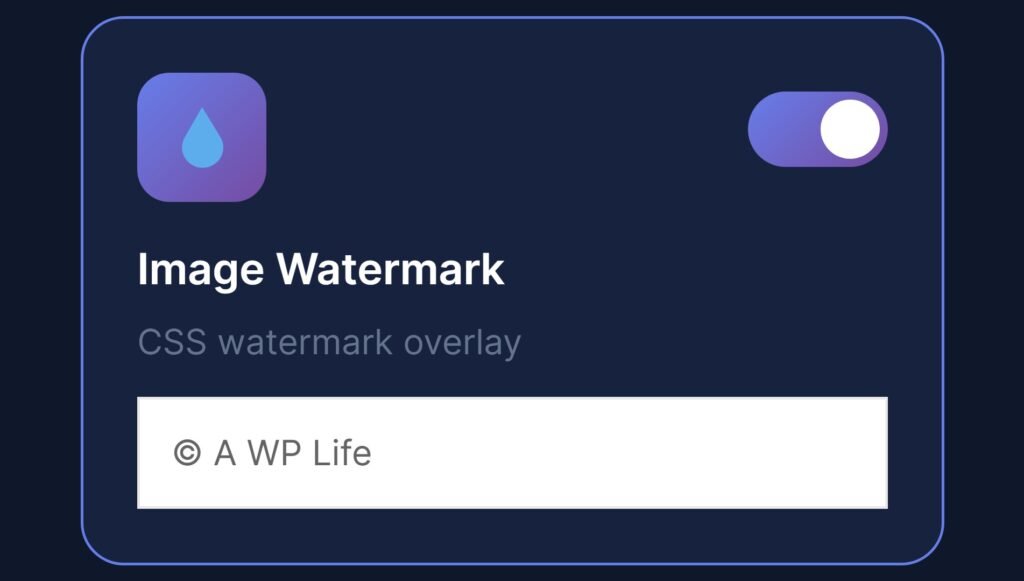
CSS Watermarks – You can add a semi-transparent text overlay on all your images. The watermark can display anything, such as your site name, copyright notice, or a custom message. You control the position (center, corners, or bottom) and the opacity level.
5. Developer Tools Detection
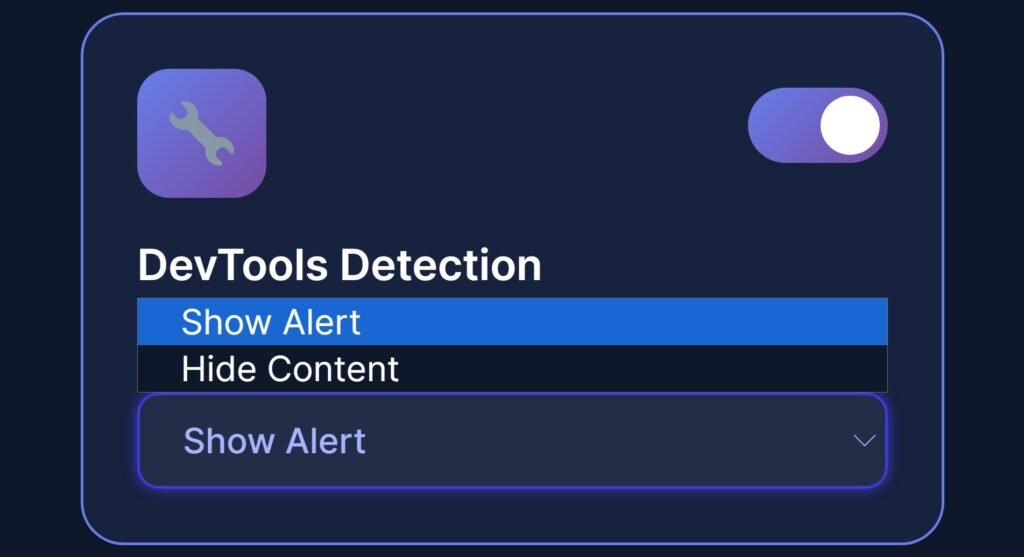
This is a more advanced layer of protection. When someone opens their browser’s developer tools (which would let them access and copy anything regardless of other protections), the plugin detects it.
You can configure different responses:
- Show a warning message alerting them that such tools aren’t permitted
- Blur or hide the page content so there’s nothing useful to steal
- Redirect them away to a different page entirely
It’s not foolproof, nothing is, but it adds friction that discourages casual snooping.
6. Focus Loss Detection
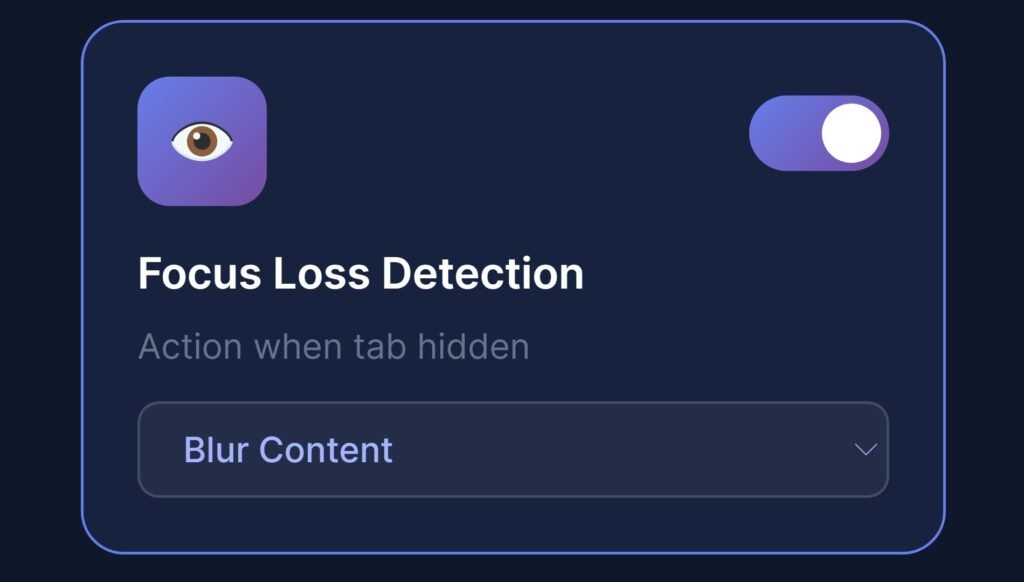
This clever feature detects when a visitor switches to another tab or window. Why does this matter? Because some users open developer tools in a separate window to bypass detection.
When focus loss is detected, you can show a message, blur the content, overlay the page, or redirect visitors. It’s particularly useful for educational content or materials where you want full attention on your page.
Mobile Protection: An Often Overlooked Area
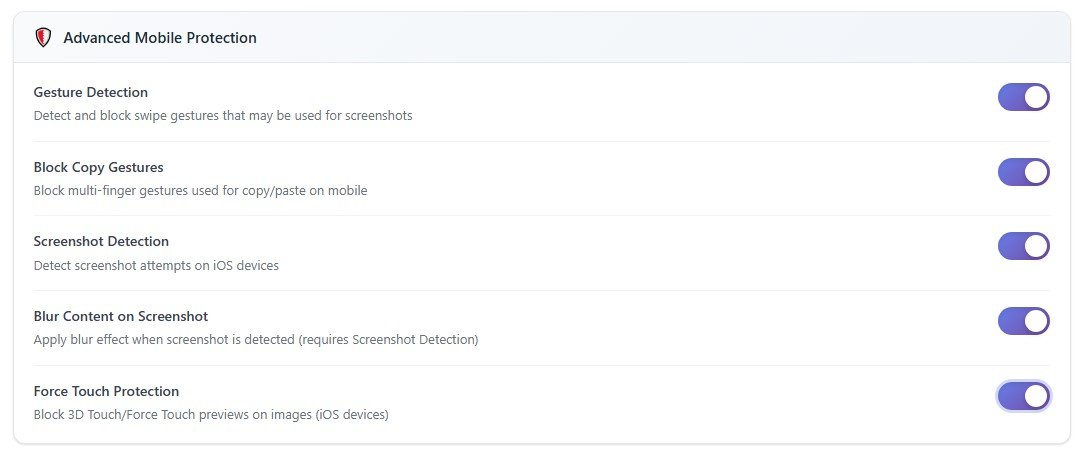
Here’s something many content protection solutions miss entirely: mobile devices. The majority of web traffic now comes from phones and tablets, and they have completely different interaction patterns.
Long-Press Protection
On mobile, users don’t right click—they long-press. Holding your finger on an image or text for a second or two triggers a context menu similar to desktop right clicking. Good mobile protection blocks this action.
You can even control how long someone needs to press before triggering protection (500ms, 750ms, etc.) to avoid interfering with normal scrolling and navigation.
Copy Gesture Detection
Mobile operating systems have various gestures for copying content. Protection can detect and block these multi-finger gestures that would normally trigger copy menus.
Screenshot Warning
While you can’t technically prevent someone from taking a screenshot of their own phone, you can detect when they attempt it and respond with a warning message or by blurring sensitive content right before the screenshot captures.
Force Touch and 3D Touch
Some devices support pressure-sensitive screens that can trigger context menus through harder presses. This interaction can be blocked as well.
Mobile Alert Styles
Instead of jarring browser alert boxes on mobile (which look terrible), you can use:
- Toast notifications – subtle messages that slide in from the bottom
- Vibration feedback – the phone vibrates briefly to indicate blocked action
- Custom popup messages – styled notices that match your site design
Access Control: Who Sees Protection?
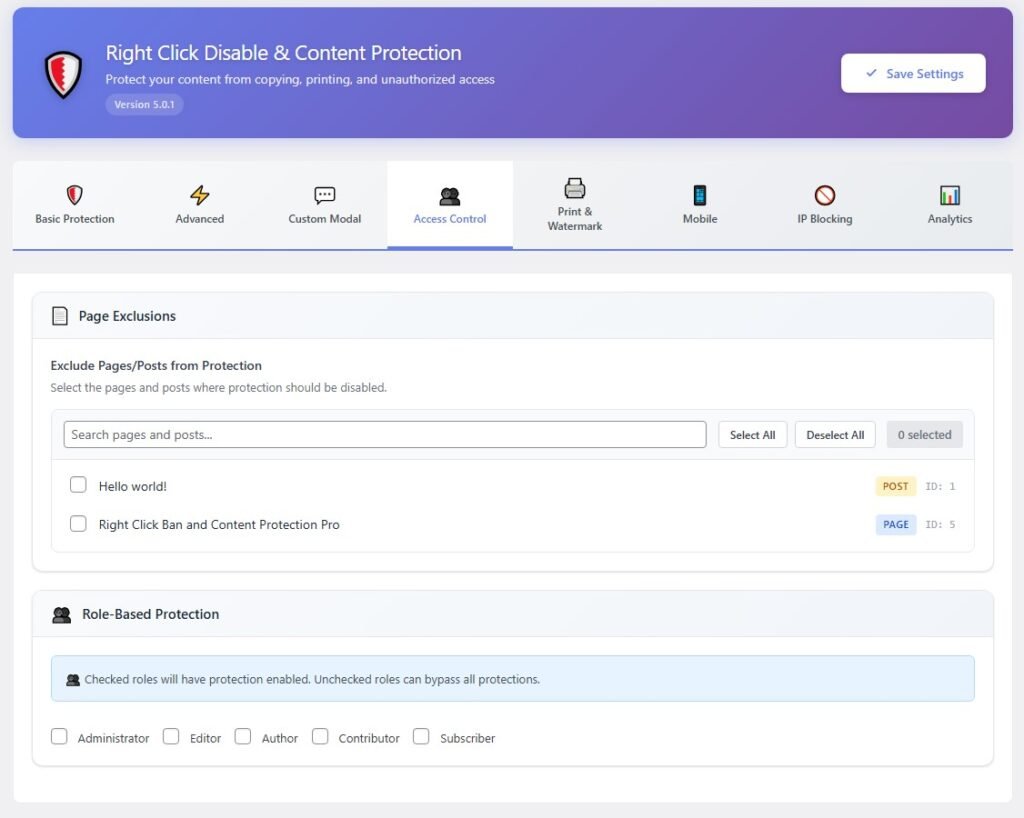
Not everyone visiting your site should see the same protection. Consider these scenarios:
- Your editorial team needs to copy content between posts
- You want subscribers to have more access than anonymous visitors
- Administrators should never see any protection
Role-based access lets you configure exactly which WordPress user roles see content protection:
- Administrator
- Editor
- Author
- Contributor
- Subscriber
You can also set up per-page rules. Maybe your portfolio pages need maximum protection, while your contact page doesn’t need any. This granular control prevents the protection from becoming annoying in contexts where it isn’t necessary.
IP and Geographic Blocking
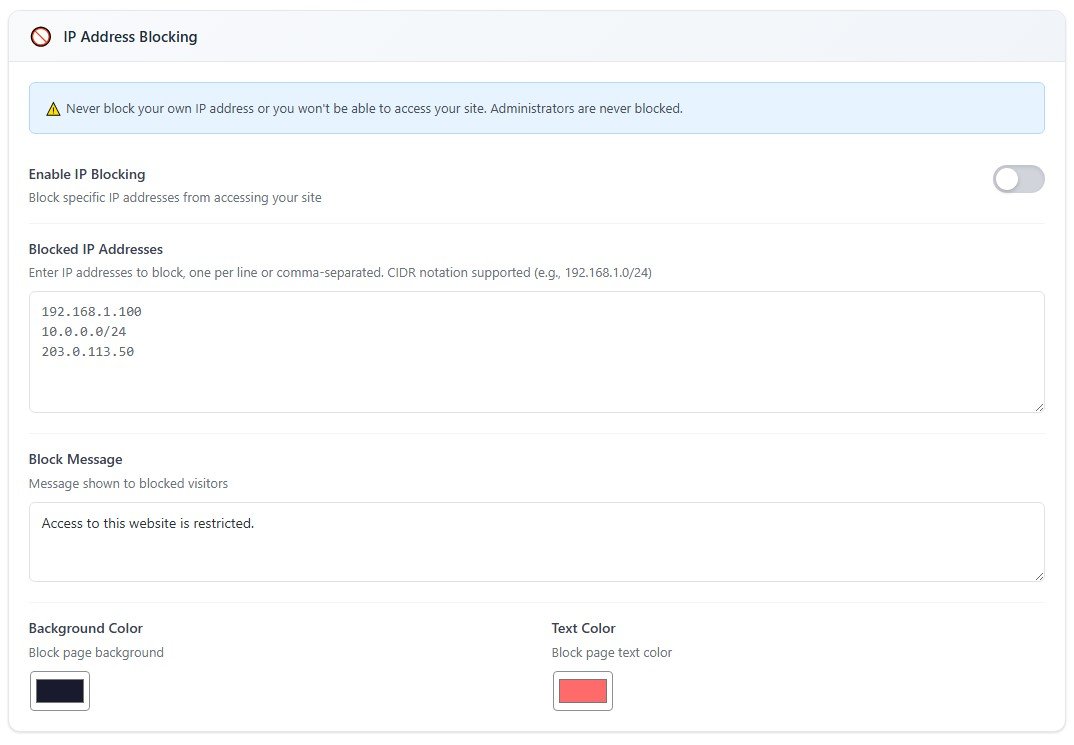
Beyond preventing copying, some sites need to block access entirely for certain visitors:
IP Address Blocking
If you notice repeated scraping attempts from specific IP addresses, you can block them completely. These visitors see a customizable message explaining they’ve been blocked instead of your content.
Country Blocking
Some sites have legitimate reasons to block visitors from certain countries—licensing restrictions, regulatory compliance, or simply preventing bot farms that frequently originate from specific regions. You can select which countries to block and customize the message they see.
Bot Detection
Automated scraping bots are everywhere, and they can copy your entire site in minutes. Bot blocking identifies common scraper user agents and blocks them while allowing legitimate visitors through.
You can also enable rate limiting, which automatically blocks any visitor making too many requests in a short period—a clear sign of automated scraping rather than human browsing.
Custom Modal Messages
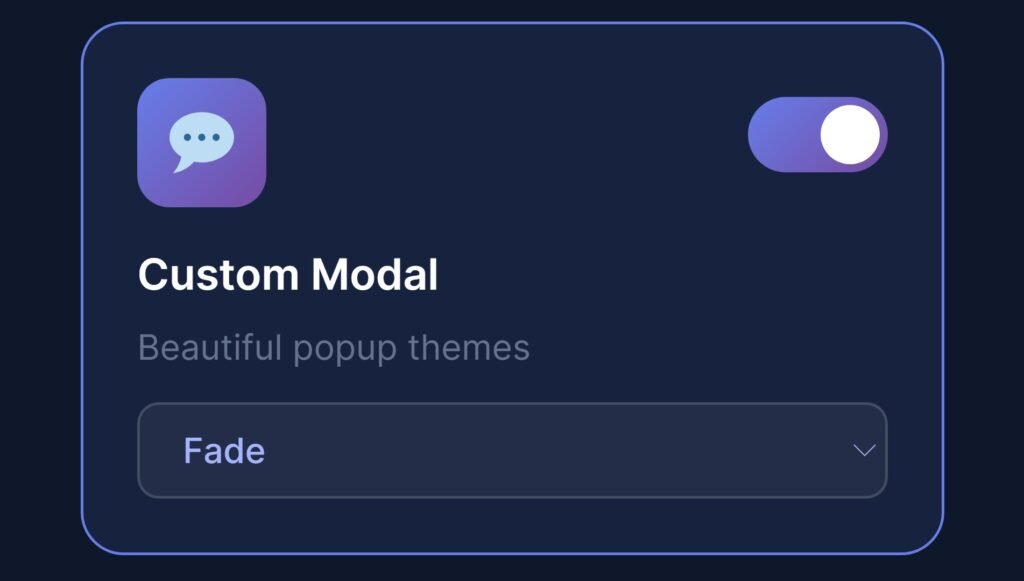
The default browser alert boxes (those plain grey JavaScript popups) look dated and feel intrusive. Modern content protection should use styled popups that match your website’s design.
Custom modals include:
- Animation options – Fade, slide up, bounce, or zoom effects
- Custom messaging – Write whatever title and message fits your brand
- Your button text – Instead of “OK,” say whatever makes sense
- Multiple themes – Light, dark, glass, gradient, neon, and more
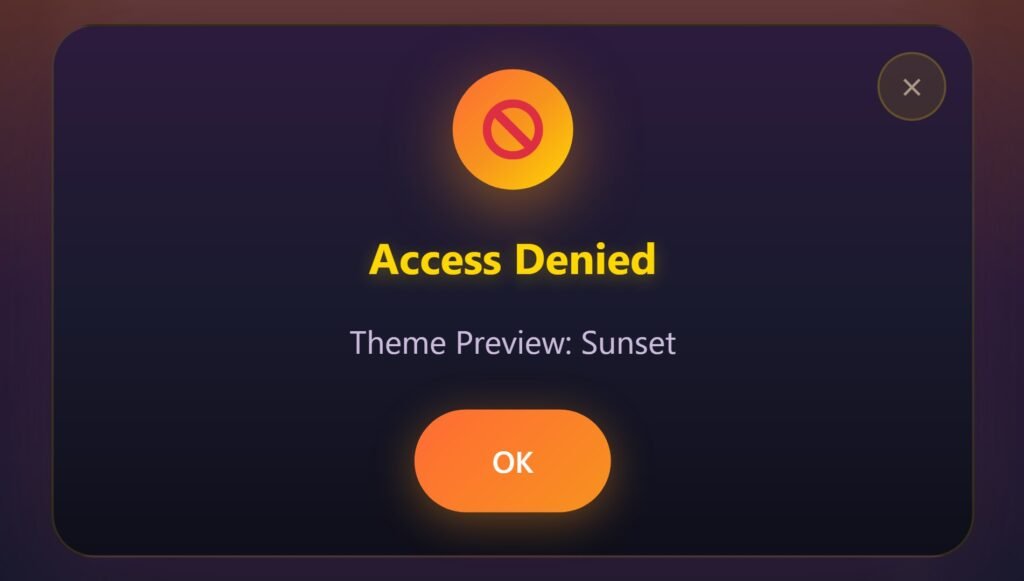
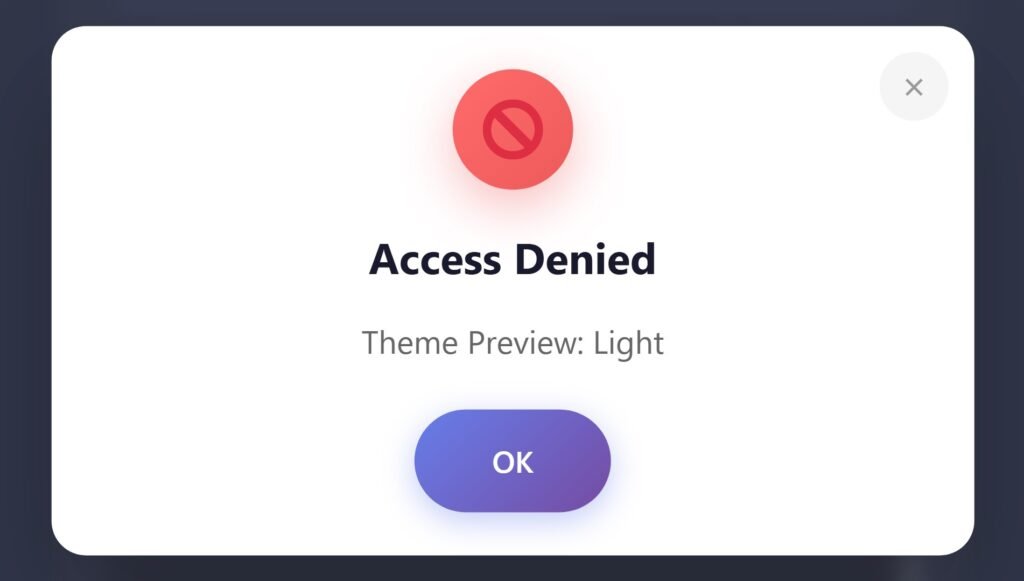
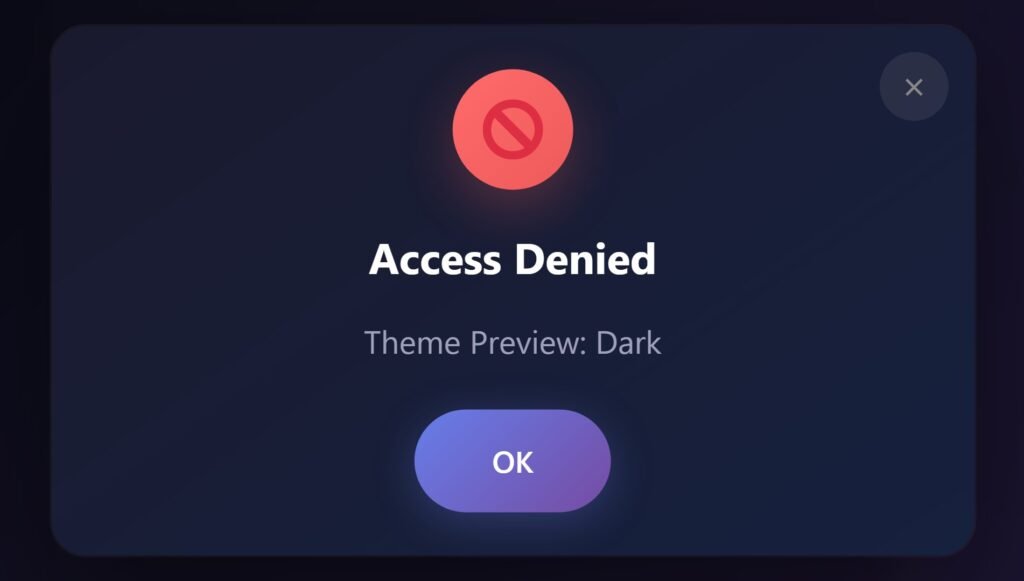
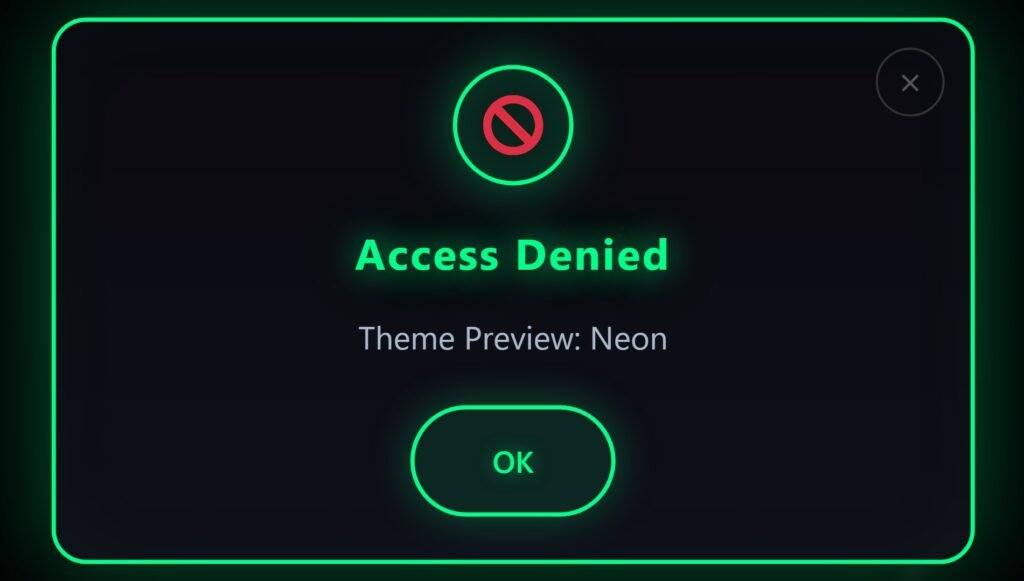
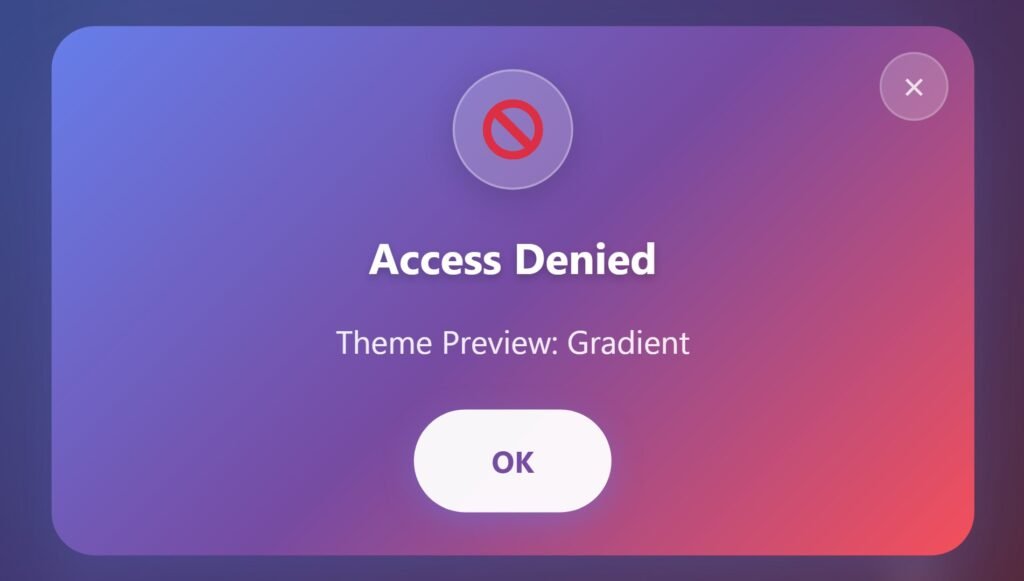
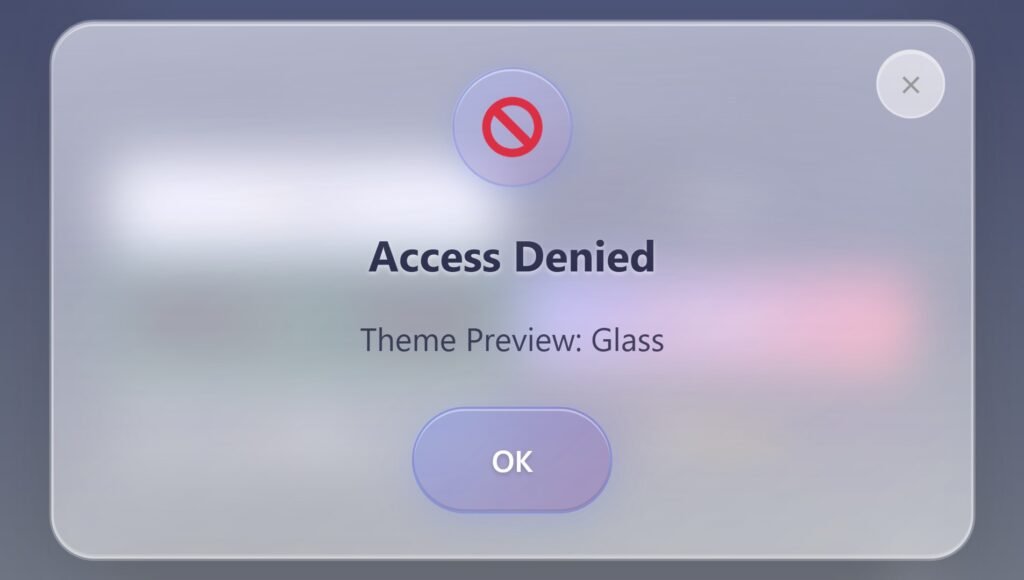
This small detail makes a surprisingly big difference in how visitors perceive the protection—as a site policy rather than a confrontational block.
Print Protection
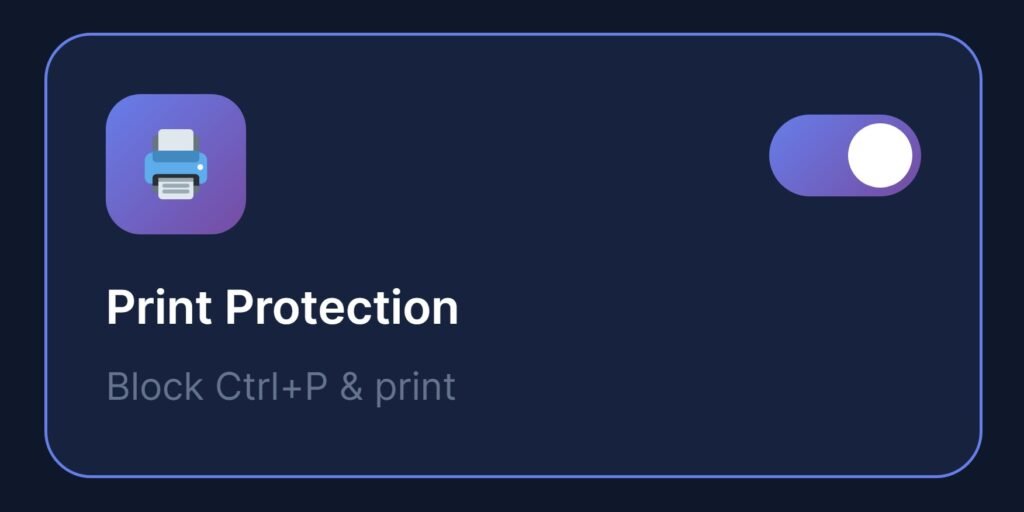
People often forget that printing a page creates a perfect copy of your content. Print protection blocks:
- Ctrl+P / Cmd+P keyboard shortcut
- Browser print menu option
- JavaScript window.print() calls
When someone tries to print, they see a message explaining that printing isn’t available. You can also configure what (if anything) actually appears if they manage to trigger a print preview.
Analytics: Understanding What’s Happening
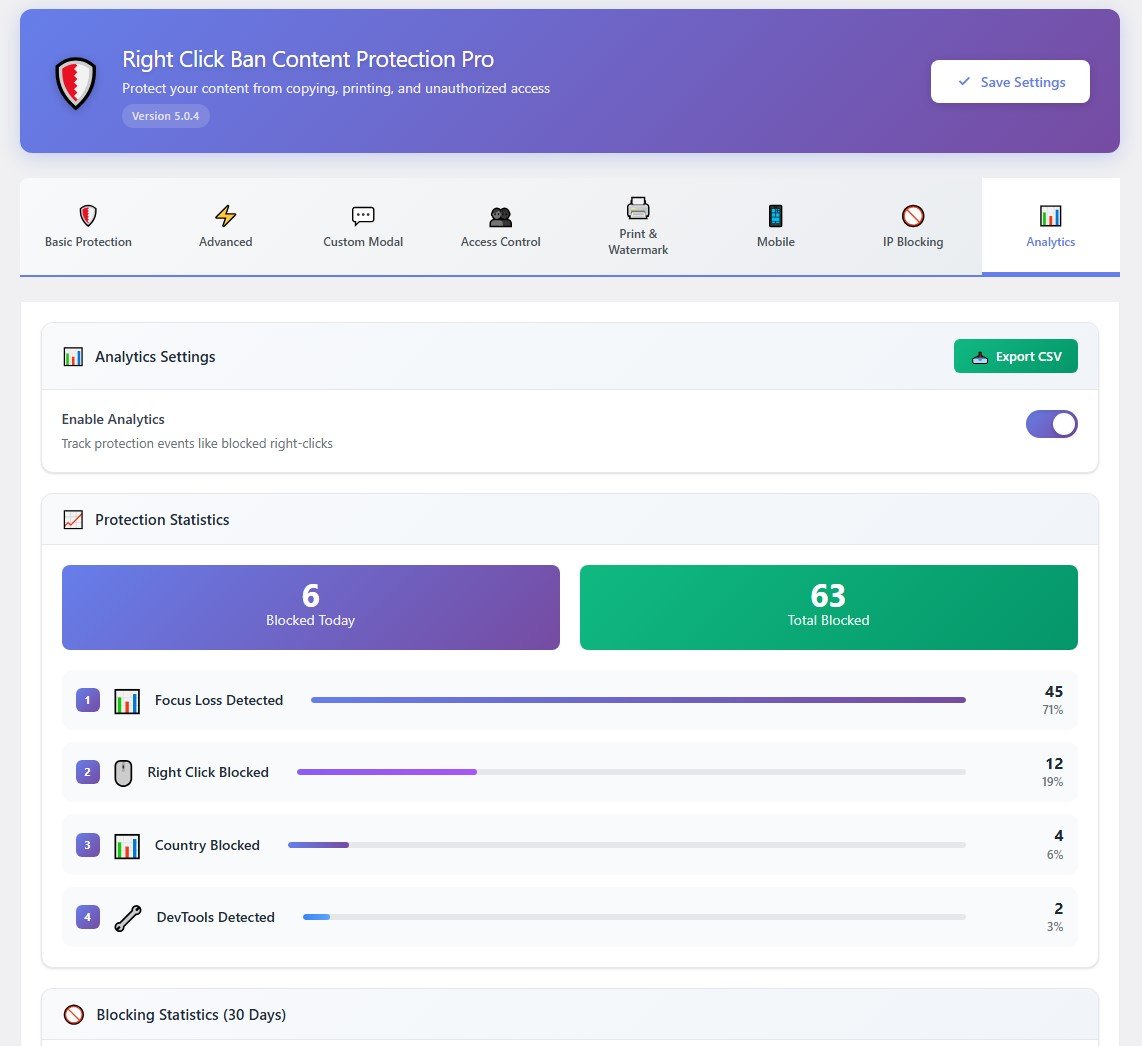
Protection is great, but you should also know when it’s being triggered. Analytics tracking records every time someone attempts a blocked action:
- Right click attempts
- Keyboard shortcut attempts
- Text selection attempts
- Image drag attempts
- Developer tools openings
- Mobile long-press attempts
- Print attempts
You can view these statistics in charts and graphs showing:
- Daily activity trends over the past week
- Which protection layers trigger most often
- Geographic breakdown of attempts
- Browser and device information
- Specific pages being targeted
This information helps you understand whether your content is actually attracting copying attempts and which pages are most targeted.
You can export all this data to CSV for further analysis.
Performance Considerations
A common concern with any protection plugin is speed. Will it slow down your site?
Good content protection should:
- Load minimal code – Protection scripts should be just a few kilobytes
- No external dependencies – No loading scripts from third-party servers
- Conditional loading – Only load protection on frontend pages, not admin screens
- CSS-based, where possible – Text selection blocking via CSS has zero performance impact
The protection runs entirely in the visitor’s browser after your page loads. Your server isn’t doing any extra work.
What Protection Can’t Do
I want to be honest here: no content protection is absolute. A truly determined person can always find ways around it:
- They could take screenshots and OCR the text
- They could transcribe content manually
- They could use specialized scraping tools that ignore JavaScript
- They could disable JavaScript entirely in their browser
The goal isn’t to make copying impossible—it’s to make it annoying enough that casual copying stops. The person who was going to grab your photo for a quick social media post will give up and use a stock photo instead. The blogger who was going to copy-paste your article will write their own.
Think of it like locking your car. A professional can still break in, but the lock stops the opportunistic thief.
Browser Compatibility
Protection needs to work everywhere your visitors are. Modern solutions are tested across:
- Chrome (desktop and mobile)
- Firefox (desktop and mobile)
- Safari (macOS and iOS)
- Edge (desktop and mobile)
- Opera
- Samsung Internet
- Brave
Safari requires special handling because it handles events differently from Chromium-based browsers. Good protection accounts for these differences automatically.
Getting Started
If you’re looking to implement disable right click functionality and comprehensive content protection on your WordPress site, the process is straightforward:
- Buy Disable Right Click and Content Protection Pro, and download the plugin from your A WP Life account
- Install and activate the plugin
- Configure which protection layers you want active
- Customize any messages to match your brand voice
- Optionally enable analytics to track activity
- Test as a logged-out visitor to verify that protection works
Most sites don’t need every single feature. A photographer might focus on image protection and watermarks. A blogger might prioritize text selection and keyboard shortcut blocking. A business with proprietary documentation might use everything, including geographic restrictions.
Try Free Version of Right Click Disable Or Ban Plugin
You can also try the free version of the plugin to protect your WordPress website content, which have few basic protection option avaible. So, you can try that plugin initially to know how the plugin works.
Wrapping Up
Content theft is frustrating, and while we can’t eliminate it, disable right click and comprehensive content protection significantly reduces casual copying. The combination of context menu blocking, keyboard shortcut prevention, text selection disabling, image protection, mobile coverage, and analytics gives site owners meaningful tools to protect their work.
The key is choosing protection that covers the ways people actually copy content—not just the obvious right-click method, but all the workarounds too. And doing it without annoying your legitimate visitors or slowing down your site.
Your content has value. It’s worth protecting.
